
Reports
Reports on the rail has two reports, each a page you can save as a PDF or download as numbers:
-
Change over time: How one field’s index has changed, year by year. It suits the yearly reporting an estate or a concession is asked for, such as land use and land cover change, but works for any field and any index the group has.
-
Monthly field report: Every field against the rest of the estate in one month, and the fields that need a look (The monthly field report). It suits estates of many blocks, such as plantations.
Both use the daily scenes the main map shows. Quarterly composites are never used, and the change report uses the monthly composites only when you choose them.
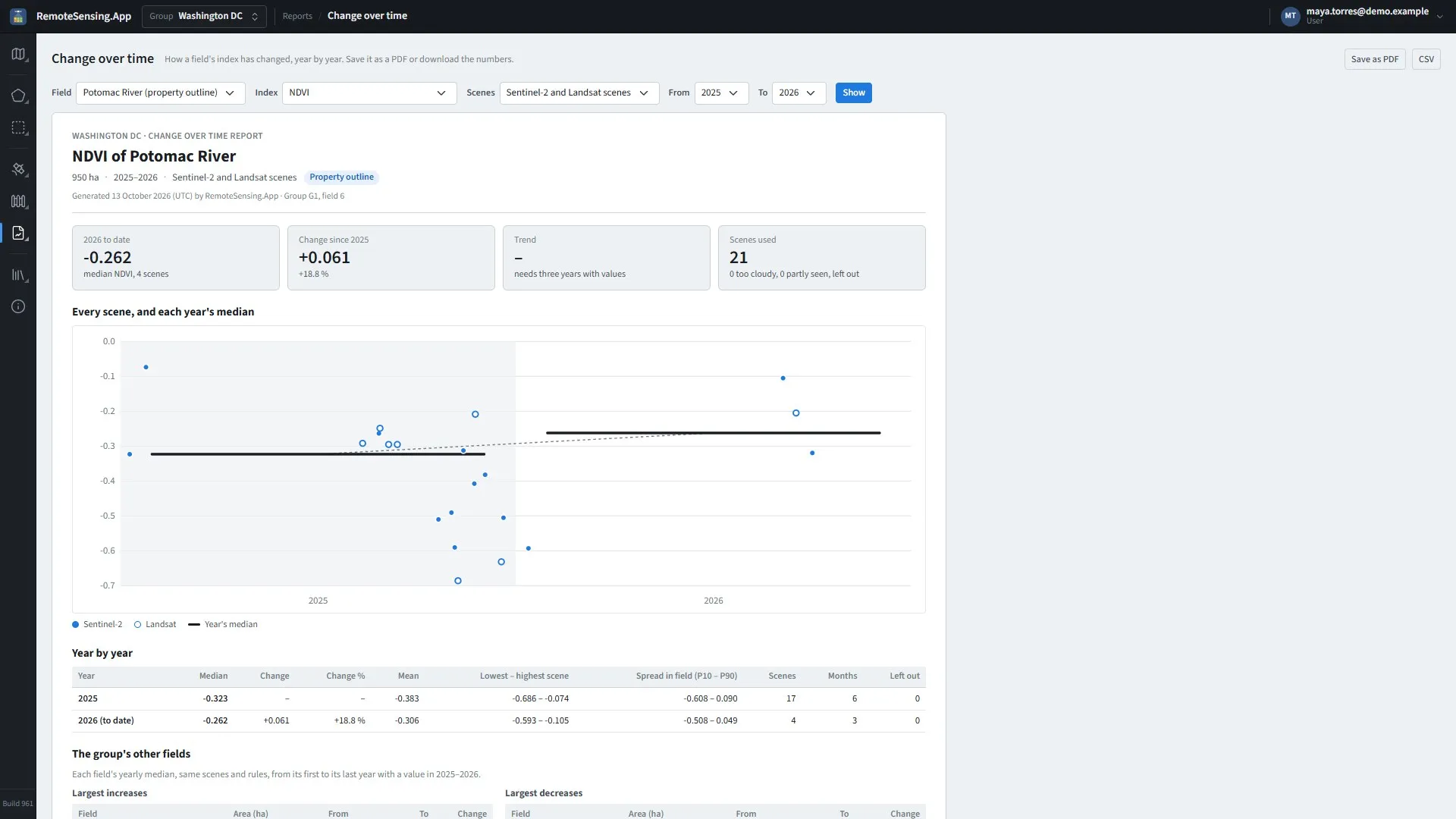
Change over time: one field’s index year by year, with every scene behind it.
Change over time: choosing what it covers
Section titled “Change over time: choosing what it covers”-
Field: The report opens on the group’s property outline, the field an administrator chose for it (Administrator Guide, The Groups page); the list marks it. Any other field can be chosen. A group without a property outline asks for a field first.
-
Index: NDVI when the group has it, or else the first one (the monthly field report opens on NDRE, then NDVI). The list has one choice for each index the field has statistics for, named as the index is (NDVI (narrow NIR), EVI (raw numbers), True Color), whichever satellite computed it. A link may name the index by its key or by an older name (
index=NDVI,index=NDWI_L8): all open the same report. The CSV files keep the names they always had. The cloud and shadow masks are not offered: they are not indices. -
Scenes: Sentinel-2 and Landsat scenes, the default; only one of the two satellites; or Monthly composites. Composites are never mixed with daily scenes, since a composite already sums up its month.
-
From, To: The years, from the first to the last with a usable scene.
The group picker in the top bar opens the report of another group.
Reading the change report
Section titled “Reading the change report”-
The figures: The last year’s value (marked to date in the current year), the change since the first year, the trend per year, and how many scenes were used and left out.
-
The chart: Every scene as a dot (Sentinel-2 filled, Landsat hollow, scenes left out grey), and each year’s value as a bar across the year, the bars joined year to year. Hover a dot or a bar for its numbers.
-
Year by year: Each year’s value, its change from the previous year with a value, the mean, the lowest and highest scene, the usual spread inside the field (the scenes’ 10th to 90th percentile), the number of scenes and of the months they fall in, and how many were left out.
-
The group’s other fields: The fields whose value rose and fell the most, from their first to their last year in the report. Show every field adds all of them, year by year.
-
How this report is made: The rules below, printed on the report itself, so a copy explains itself.
A year’s value is the median of its scenes’ values, each the mean of the index over the field, from the scenes the map shows (the best scene of each day). A scene is left out for a field when the field is too cloudy in it (over the group’s cloud threshold, as the chart’s Skip uses), or when it saw less than half of the field clearly compared with the field’s clearest scene from the same satellite, for example because the edge of the image cuts across the field. The trend is the straight line that best fits the yearly values.
The report gives each change with its sign and no colour: whether a rise is good depends on the index, which may measure vegetation, water or bare ground.
Saving a report
Section titled “Saving a report”-
Save as PDF: Opens the browser’s print window: choose Save as PDF as the printer. The report prints on its own, on A4, without the menus and the choices above it.
-
CSV: The numbers behind the report. The change report’s: one row per field and year, the report’s field first, with the year-by-year columns and each field’s area. The monthly field report’s: one row per field, with its numbers and its standing in each of the 13 months.
Areas come from the field outlines.
The monthly field report
Section titled “The monthly field report”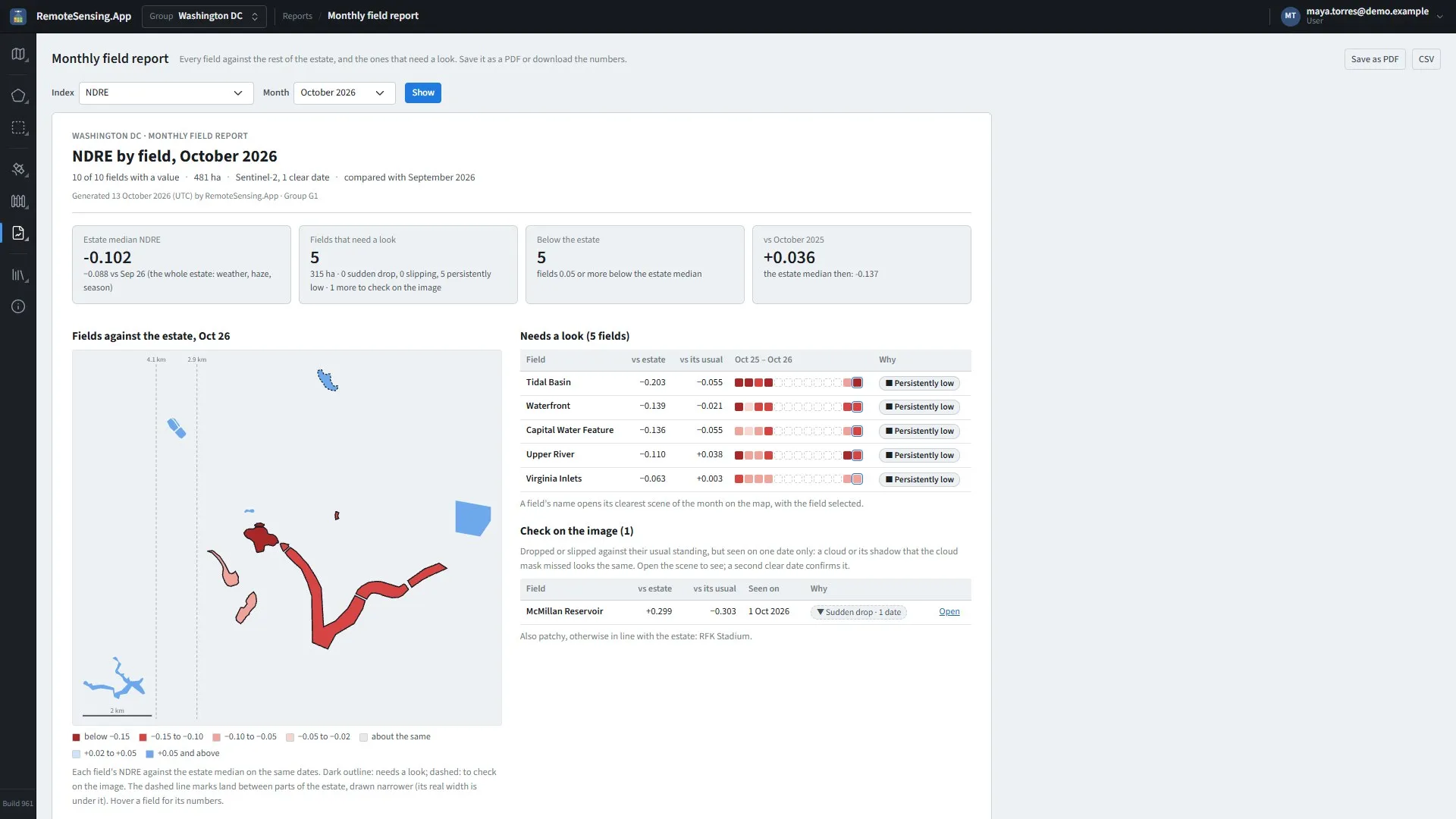
Monthly field report: each field against the rest of the estate in one month, on a map and month by month, and the fields that need a look.
Reports, Monthly field report compares every field of the group with the rest of the estate in one month. A field’s own value moves with the weather, the haze and the season; its standing against the other fields seen on the same day does not, so a field that falls behind shows.
Choosing the month
Section titled “Choosing the month”-
Index: NDRE when the group has it, else NDVI, else the first index. NDRE suits closed canopies, such as oil palm, where NDVI levels off.
-
Satellite: Sentinel-2 when the group has it, else Landsat; the list appears when the index has values from both. One satellite at a time.
-
Month: The latest month with values first. Show reads the choices again; changing the index or the satellite does so at once.
The group’s property outline is left out: it is the estate, not one of its fields.
Reading it
Section titled “Reading it”-
The figures: The estate’s median value and how it moved since the month before; how many Fields that need a look, and why; the weakest division, or how many fields are below the estate; and the estate against the same month a year earlier.
-
Fields against the estate: A map of the fields, each coloured by its standing vs estate, from below −0.15 to +0.05 and above. A field that needs a look has a dark outline, one to check on the image a dashed one. Hover a field for its numbers.
-
By division: When the fields belong to two or more divisions (a third name a field can carry,
Name_03, set when fields are loaded for a group), each division’s fields, area, value, standing and how many need a look. -
Needs a look: The fields flagged this month, with their standing vs estate and vs its usual, a strip of their last 13 months and the reason. A field’s name opens its clearest scene of the month on the main map, with the field selected.
-
Check on the image: Fields that dropped or slipped, but on one date only: open the scene and look. A cloud, or a cloud’s shadow the mask missed, looks just the same; a second clear date confirms a real change.
-
Every field, month by month: Every field, weakest first, one coloured cell per month, the report’s month framed in blue.
-
Show all … fields: Every field’s numbers in one table.
-
How this report is made: The rules below, printed on the report itself.
How the standing is worked out
Section titled “How the standing is worked out”On each clear date, a field’s standing is its mean minus the median of the fields that date saw clearly. A date counts when it saw at least half of the fields clearly, and a field’s scene counts when it is under the group’s cloud threshold and saw at least half of the field clearly. The month’s standing is the median of its dates, each weighted by how much of the field it saw. The monthly composite is used only for a field no single date saw that month: a composite takes each pixel from the clearest date, so differences between fields in it can be seams.
vs its usual is the field’s standing now minus its median standing in up to three earlier months within the last year. It needs at least two such months: without them the field has no vs its usual, and cannot be flagged for a sudden drop or a slip. The flags:
-
Sudden drop: 0.15 or more below its usual standing: often clearing or replanting.
-
Slipping: Further below its usual standing than is normal on the estate this month: 2.5 robust spreads below the median, and at least 0.05.
-
Persistently low: 0.05 or more below the estate in at least 80 % of its months in the last year, with at least 4 months that have a value.
-
Patchy: The spread inside the field (its 10th to 90th percentile) is among the widest tenth of the estate this month. A tag only: it never puts a field on the list by itself.
A sudden drop or a slip counts only when the month’s value comes from at least two dates; seen on one date, the field is listed under Check on the image instead.