
The main map
The main map is where most of the work happens: it shows one scene at a time over your group, in the layer you choose, with your fields and their values beside it and every other scene on a timeline below.
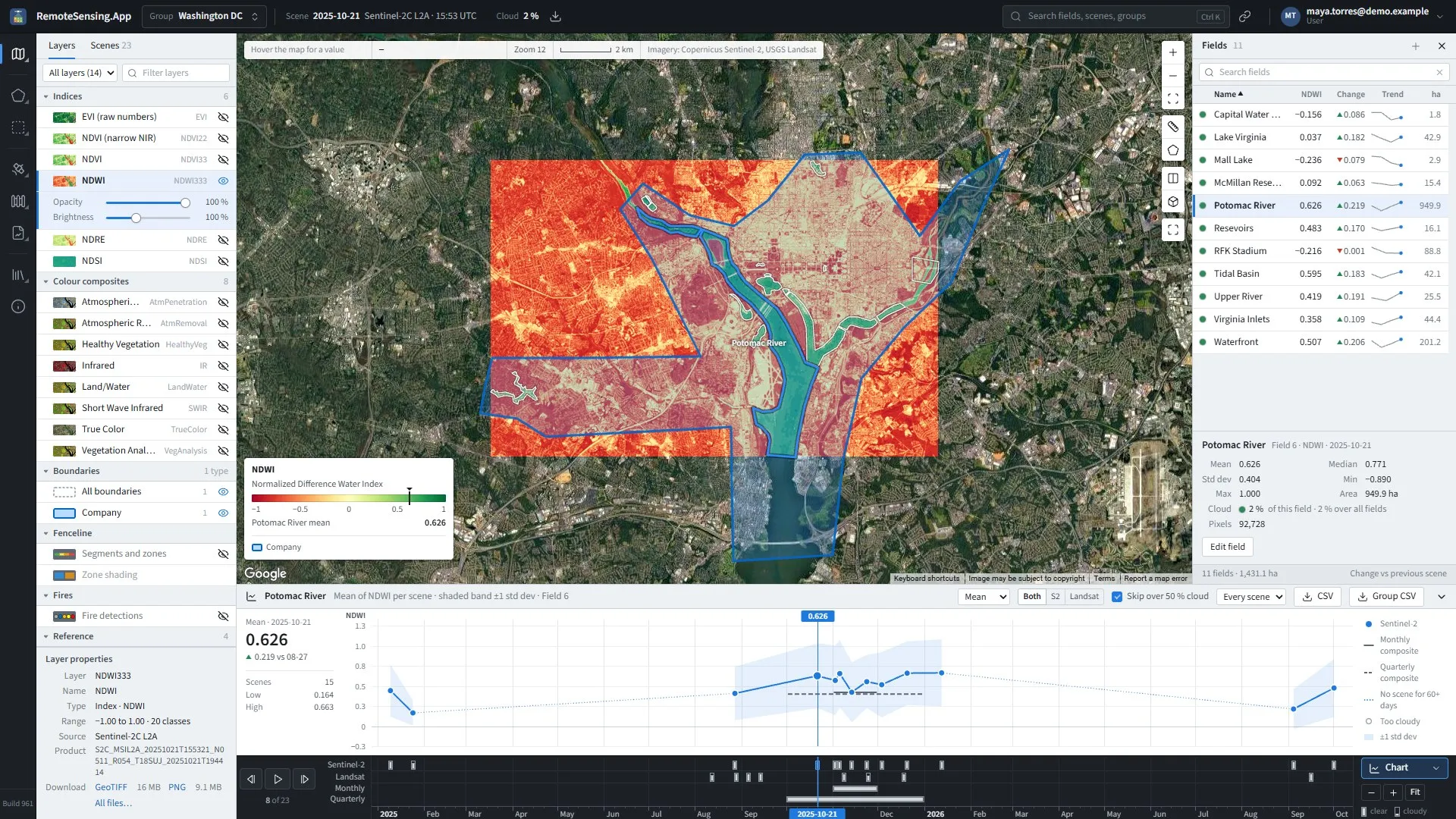
The main map: the layers and scenes on the left, the map, the fields on the right, the chart and the timeline below.
The screen at a glance
Section titled “The screen at a glance”-
The top bar: The group picker, then the scene you are looking at: its date, its satellite and the time it passed (in UTC), and Cloud, the share of your fields’ area that was under cloud. Then the download button, the search box, the share button and your menu.
-
The left panel: Two tabs: Layers, what to show for the scene (Choosing a layer), and Scenes, every scene of the group (The scenes list).
-
The map: The scene in the chosen layer, your fields’ outlines and names, your boundaries, and the legend at the bottom left. The tools are down the right edge (The tools), and the status strip at the top left reads the value under the pointer (Reading a value).
-
The fields panel: Every field with its value in the chosen layer, how it changed and its recent trend (The fields panel).
-
The chart and the timeline: The chart plots the selected field’s value through time; the timeline under it holds every scene, one lane per satellite (Choosing a scene).
Choosing a scene
Section titled “Choosing a scene”
The timeline: one lane per satellite, a mark for each scene, the current one highlighted.
Every processed scene of the group is a mark on the timeline, in its satellite’s lane: Sentinel-2, then Landsat, Sentinel-1, Monthly and Quarterly when the group has them. A mark’s fill shows how clear the scene was: a full mark is a clear sky over your fields, an empty one a cloudy sky. Monthly composites are bars that span their month, and quarterly composites bars that span their quarter; the top bar names one as, for example, Q2 2025 composite.
-
Click a mark to show that scene. Hover over one first to see a preview of it, its date and time, its cloud, how many of your fields it shows clearly, and the selected field’s value in it.
-
Step with Previous scene and Next scene at the left of the timeline, or the ← and → keys.
-
Play steps through the scenes by itself, one every 1.8 seconds, and starts again at the beginning. Press it again, or Space, to stop.
-
Zoom the timeline with + and –, or the mouse wheel over it; drag it sideways to move along. Fit, or a double-click, shows every scene again.
The counter under the buttons, such as 7 of 22, counts the scenes the current filter shows (The filters). While the filter hides scenes, it says how many, such as 2 hidden, with Show all: point at it to see what hides them, and press it to show every scene again (every satellite, the All view and any cloud).
One satellite at a time
Section titled “One satellite at a time”When the group has scenes from more than one source, the lane names are a switch. Click Landsat to see only the Landsat scenes: the other lanes dim, the arrows and play keep to Landsat, and the counter counts only Landsat scenes. Click the lit name again to see every scene. Monthly shows only the monthly composites, and Quarterly only the quarterly ones.
The same choice is the Satellite list on the Scenes tab. The site remembers it for each group, and the share link carries it (Sharing a view).
The scenes list
Section titled “The scenes list”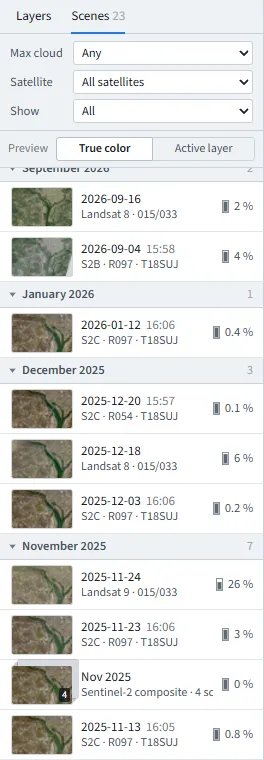
The Scenes tab: the filters, then every scene by month.
The Scenes tab lists every scene, the newest first, by month. A row shows a small preview, the date and time, the satellite with its orbit and tile, and the cloud over your fields. A composite’s preview is a little stack with the number of scenes it was built from. Click a row to show that scene.
The filters
Section titled “The filters”-
Max cloud: Any, or only scenes with at most 10, 30 or 50 % cloud over your fields. A scene whose cloud is not known always shows.
-
Satellite: All satellites, or one of Sentinel-2, Landsat, Sentinel-1, Monthly composites and Quarterly composites, as the group has them (One satellite at a time).
-
Show: With every satellite shown and a group that has composites: All; Monthly, the composites plus the daily scenes of months that have no monthly composite; or Daily, no composites.
-
Preview: Whether the previews show the scene in True color or in the Active layer.
The filters shape the list, the timeline (a scene outside them is dimmed), the arrows and play. When Satellite or Show hides the scene you are looking at, the map moves to the newest scene they show.
Choosing a layer
Section titled “Choosing a layer”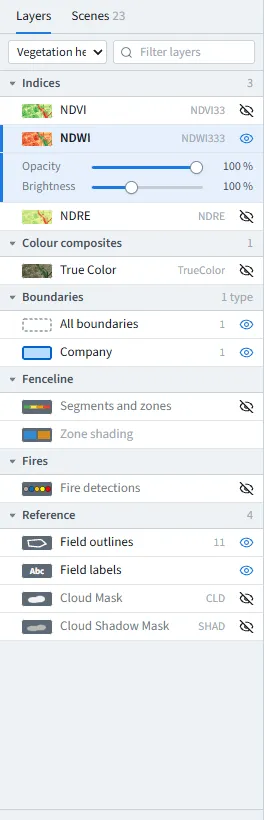
The Layers tab with a map view chosen: its indices and colour composites in the view’s order, then boundaries, fenceline, fires and the reference layers.
The Layers tab lists what the current scene can show, in sections: Indices, Colour composites, then Boundaries, Fenceline, Fires (Fires) and Reference. Click a layer to show it; the eye button hides or shows it. Click a section’s heading to fold it.
-
A map view narrows the list to a saved set of layers, in the view’s own order: pick it at the top, where All layers shows everything. One view serves both satellites: a view that holds NDVI lists the NDVI of Sentinel-2 and of Landsat scenes alike. Manage collections… at the end of that list opens the map views’ page (Map views (index collections)).
-
Filter layers finds a layer by its name or abbreviation as you type; Esc clears it.
-
Opacity and Brightness, under the active layer, fade it over the base map or lighten a dark scene. The brightness is remembered.
-
Match Google, under Brightness on the True Color layer, tunes the true colour to Google’s satellite imagery, so the overlay blends with the map around it. It changes only what the screen shows: downloads, reports and the 3D view keep the true colours. It is on by default for groups in Indonesia, where it was fitted (elsewhere it can turn the colours purple), and your choice is remembered for each group.
-
Layer properties describe the active layer: its type, its range and colour classes, its satellite and the scene’s product name, with links to download it (Downloads).
True Color draws every scene with the same colour curve, Sentinel-2 and Landsat alike, so a field looks the same from one date to the next and clouds keep their texture. The scene thumbnails, the previews and the composites use the same look. A scene processed before 8 October 2026 keeps its older look, in which each scene was adjusted on its own, until it is processed again.
Your layer follows you from scene to scene. A Landsat scene names some layers differently, and some indices exist for one satellite only: the map then shows the same index under the other satellite’s name, or the true colour picture when that satellite has no such index. The map names a layer by the index, not by one satellite’s version of it: the Layers tab, the legend, the readout, the fields panel and the chart all say NDVI, True Color or Cloud Mask, whichever satellite’s scene you look at. A link names the layer by the index’s short key (i=NDVI, i=TRUE_COLOR), so a link made on a Sentinel-2 scene opens the same index on a Landsat scene. A link that names a layer by an older name, such as TrueColor or NDVI_L8, still opens it: the map finds the index and rewrites the link with its key.
Boundaries, fenceline and reference layers
Section titled “Boundaries, fenceline and reference layers”-
Boundaries: All boundaries turns them all on or off; under it, each boundary type has a switch of its own.
-
Fenceline: On a boundary that is watched (Fenceline alerts), Segments and zones draws its segments coloured by their latest score, and Zone shading shades the inside (blue) and outside (orange) zones. The legend then explains the colours: from normal to critical.
-
Reference: Field outlines and Field labels; Cloud Mask and Cloud Shadow Mask, which paint the scene’s cloud and its shadow over the map. Landsat scenes downloaded before October 2026 have a cloud mask but no shadow mask.
Field labels appear as you zoom in: large fields first, every field from zoom 15. The selected field is marked by its blue outline; its label follows the same rule as the others, and Field labels off hides every label.
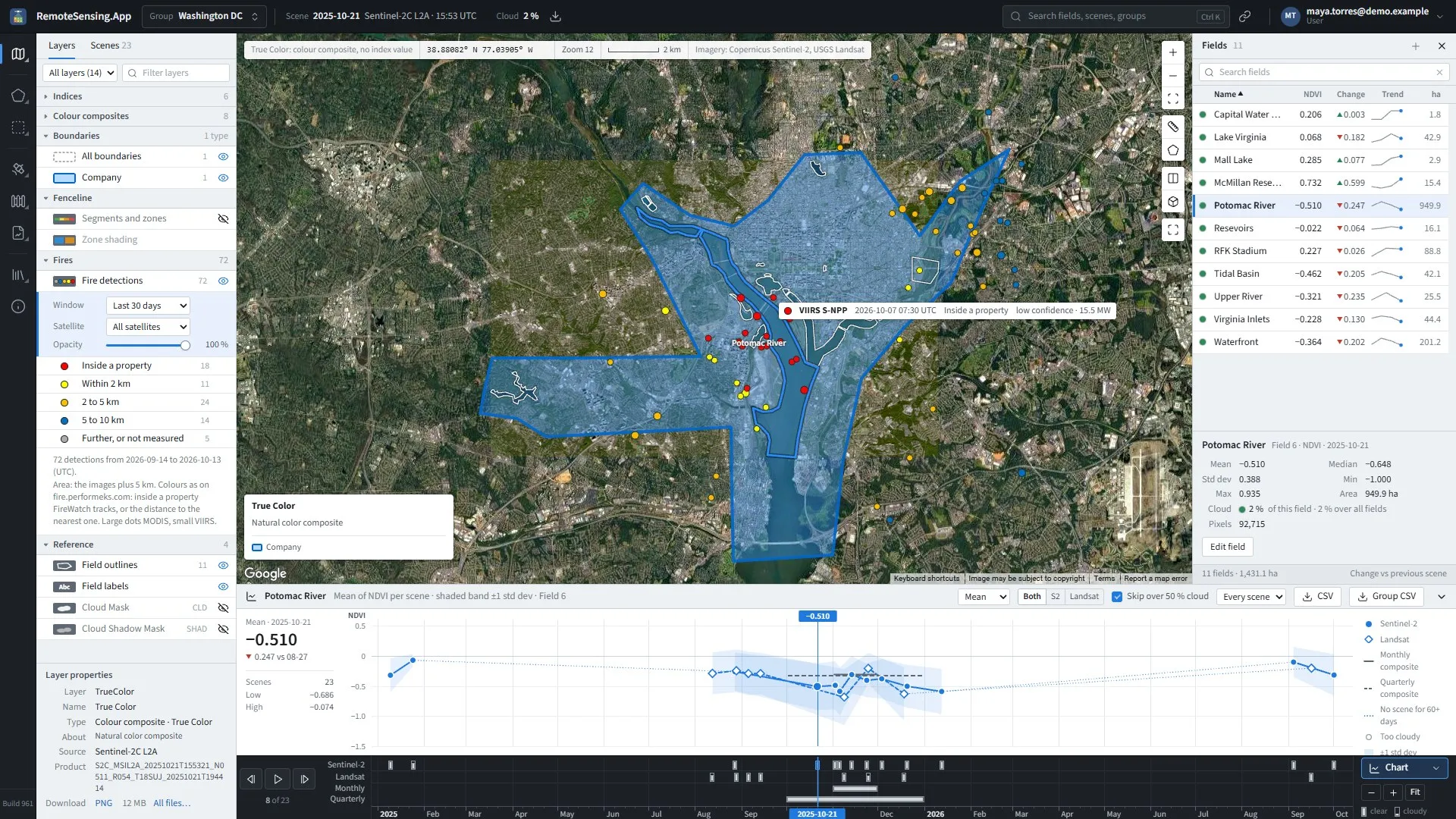
The Fires layer: fire detections of the last 30 days around the group, coloured by their distance to a tracked property, with the card of the fire under the pointer. The fires shown here are made up: the demonstration group lies outside the fire data.
Fire detections, under Fires in the Layers tab, shows the fires that NASA’s FIRMS satellites detected around the group: MODIS and VIIRS hot spots, as FireWatch, the fire site at fire.performeks.com, collects them every 30 minutes. Click it to switch it on, and the eye button to hide it again. Its choices then appear under it:
-
Window: Today, or the Last 3 days up to the Last 180 days: today and the days before it, by the date in UTC. It starts at seven days.
-
Satellite: All satellites, VIIRS or MODIS. A MODIS dot is a little larger than a VIIRS one: MODIS sees fire in 1 km pixels, VIIRS in 375 m pixels.
-
Opacity: fades the dots over the imagery.
Each dot is one detection, coloured as on the fire site: inside a property FireWatch tracks, within 2 km of one, 2 to 5 km, 5 to 10 km, and further away or not measured, smaller and fainter. Under the choices, each colour has its count, and a line gives the total, the dates and the area searched: the group’s images plus 5 km. The dots keep their size at every zoom: they mark where a fire was seen, not how large it was.
Point at a dot for its card: the satellite, when it was seen (UTC), whether it was inside a property or how far from one, its confidence (a percentage for MODIS; low, nominal or high for VIIRS) and its fire radiative power in MW.
The layer, its window, its satellite and its opacity are remembered in your browser, and a shared link turns the layer on with its window and satellite (Sharing a view).
Reading a value
Section titled “Reading a value”
The status strip: the value under the pointer, its position, the zoom and the scale.
Move the pointer over the map: the strip at the top left shows the index’s value there, with its colour, then the position, the zoom and a scale bar.
A colour composite has no value to read, and the strip says so.
The legend
Section titled “The legend”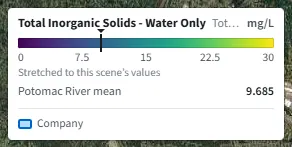
The legend of a model layer: its title and units, the colour scale over this scene’s own range, and the selected field’s value marked on the scale.
The legend, at the bottom left of the map, shows the active layer’s colours for the scene on screen. Above the scale it names the layer, with the units of its values on the right (mg/L) and, when it says more than the name, the layer’s title on a line of its own. Under the scale, the legend reads Stretched to this scene’s values for the layers that model a quantity in the water, such as the suspended solids: the colours of such a layer span the values found in each scene, so the same colour means different numbers in two scenes, and the numbers under the scale are those of the scene you are looking at. Layer properties (Choosing a layer) gives the same range in words. The value under the pointer (Reading a value) and the compare view read the same legend, each for its own scene.
The legend follows the scene: while you step through the scenes, the previous scene’s legend stays until the new one’s arrives. Scenes drawn before the colours of an index were changed keep the colours they were drawn with, so a layer can look different before and after the day its colours changed (Administrator Guide, Colours).
The fields panel
Section titled “The fields panel”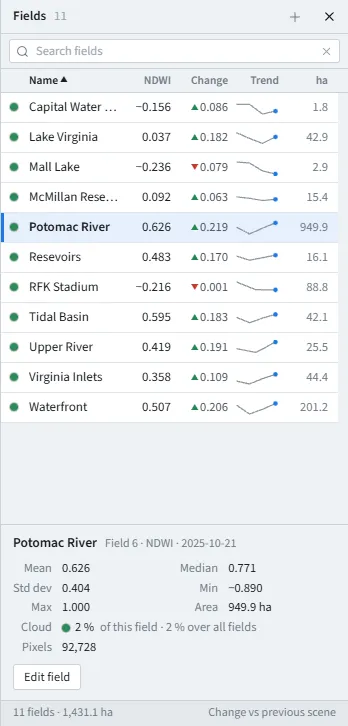
The fields panel: each field’s value, its change and its trend.
The fields panel lists every field of the group with its numbers in the current scene. When every field’s name starts the same way, such as Block_, the panel shows that start once in its heading and only the rest of each name.
-
The dot: The cloud over that field in this scene: green under 10 %, yellow up to 30 %, red above; an empty ring when it is not known.
-
Name: The field’s name. The list opens sorted by name, from A to Z, with numbers in their natural order (Field 2 before Field 10).
-
The value column: Headed by the index, such as NDVI: the field’s mean in this scene. When the layer shown is a colour composite, the panel keeps the index you used last, or shows NDVI until you have chosen one.
-
Change: How much the mean moved since the latest earlier scene from the same satellite (▲ up, ▼ down). While you compare two scenes, it is B – A instead (Comparing two scenes).
-
Trend: The field’s last eight values, up to this scene, from the same satellite. The last dot is blue when it is this scene.
-
ha: The field’s area in hectares.
Click a column’s heading to sort by it, and again to reverse it. Search fields at the top narrows the list as you type. The line at the bottom totals the fields and their area, and says what the change is measured against.
A field’s details
Section titled “A field’s details”Click a field, in the list or on the map, to select it: it turns blue on the map, the chart draws it (The chart), and the panel’s lower part shows its statistics in this scene: mean, median, spread, lowest and highest value, area, its cloud and the scene’s, and its pixel count. Edit field opens it for editing (Fields and boundaries). A field chosen in the list also brings the map to it.
The chart
Section titled “The chart”
The chart: the selected field’s mean through time, the band of one standard deviation, Sentinel-2 and Landsat apart.
The chart plots the selected field’s value in every processed scene, on the same time scale as the timeline under it: zoom or move the timeline and the chart follows. Chart, at the right of the timeline, opens and closes it.
-
The statistic: Mean, Median, Min, Max or Std dev. With Mean, a shaded band shows one standard deviation either side.
-
The satellites: Sentinel-2 is a solid line with circles, Landsat a dashed line with diamonds, a monthly composite a bar across its month, and a quarterly composite a dashed bar across its quarter. When the group has Landsat scenes, Both, S2 and Landsat choose which to plot.
-
Cloudy scenes: Skip over 50 % cloud leaves out the scenes where the field was too cloudy. They still show, as hollow grey circles, but take no part in the lines, the band or the figures. The number is the group’s cloud threshold, 50 % unless an administrator set another.
-
The figures on the left: this scene’s value and its change since the previous one, how many scenes are plotted, and the lowest and highest values.
-
A point: hover for its numbers; click it to show that scene on the map.
A field’s line holds every version of the index: values stored under an older name, such as NDVI33 or NDVI Landsat, are part of NDVI’s line, and the Landsat NDWI is part of NDWI’s. Where more than 60 days pass without a scene, a faint dotted line joins the two parts of a line, so the trend still reads across the gap; hover it for how many days it spans. The key then lists No scene for 60+ days.
Downloading the numbers
Section titled “Downloading the numbers”-
CSV: The selected field’s series for this index, every statistic, as a spreadsheet file. It follows the Both, S2, Landsat choice.
-
Group CSV: Every field and every index of the group, all its statistics.
-
CSV rows: The list beside the buttons: Every scene, or the scenes summarised by Monthly, Quarterly or Yearly. The site remembers your choice.
With Every scene, both have one row per field, index and scene, with the date, the scene and its satellite, the mean, median, lowest and highest value, the standard deviation, the pixel count, the area, and whether the scene is a composite.
With Monthly, Quarterly or Yearly, both have one row per field, index, satellite and period instead: how many scenes went into it, how many cloudy ones were left out or kept, then the average, median, lowest and highest of the scenes’ values, their standard deviation, and the dates of the first and last scene. They follow the chart: Skip over 50 % cloud leaves the cloudy scenes out, and the field CSV summarises the statistic the chart shows (Mean, Median and so on). Sentinel-2, Landsat, the monthly composites and the quarterly composites are summarised apart, since a composite already sums up its month or its quarter. A summarised row names its source, such as Sentinel-2 composite or Sentinel-2 quarterly composite. For a yearly comparison made for you, with a chart and a PDF, see Reports.
The tools
Section titled “The tools”Down the right edge of the map, from the top:
-
Zoom in, Zoom out, Zoom to fields: The last fits the map to all your fields.
-
Measure distance, Measure area: Measuring.
-
Compare two scenes: Comparing two scenes.
-
3D terrain view of this scene: The 3D view.
-
Full screen map: The map fills the screen; press it again, or Esc, to come back.
On a narrow screen, two more buttons open the layers and the fields panels, which then float over the map.
Measuring
Section titled “Measuring”-
Press Measure distance or Measure area.
-
Click on the map to add points. The running total shows in the panel above the map.
-
Double-click to finish; an area also finishes when you click its first point again.
m/ft switches between metric units (metres and hectares) and imperial ones (feet and acres). Measurements stay on the map until you press Clear, or click one and press Delete. Esc stops drawing. While you measure, clicks on fields and boundaries do nothing else.
The 3D view
Section titled “The 3D view”3D terrain view of this scene drapes the current scene and layer over the ground’s relief, from a 30 m elevation model, in a window of its own. It drapes the scene’s full image, so the whole area is covered and the picture is sharp; a scene without one is draped from its map tiles instead. Drag to turn it, scroll to zoom. Vertical exaggeration stretches the relief (3 times by default), Index changes the layer, and Face north, Top-down and Reset set the view. Where the scene has no imagery, the ground is coloured by its height.
Every field’s outline is drawn on the terrain, following the hills, in white, with the selected field in blue. Point at a line to see the field’s name. Field outlines turns the outlines on and off.
Comparing two scenes
Section titled “Comparing two scenes”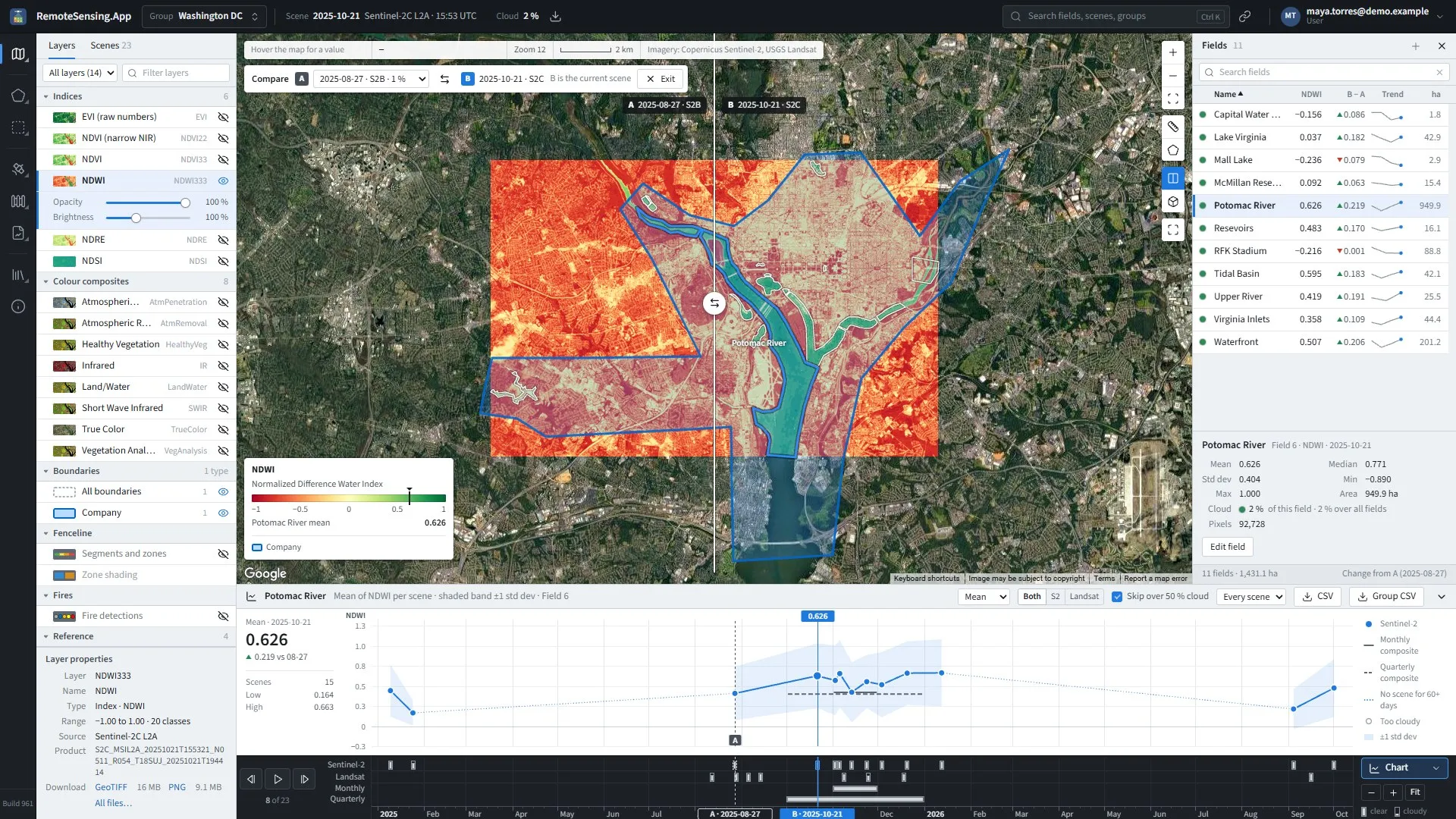
Comparing two scenes: A on the left of the divider, B, the current scene, on the right.
Compare puts an earlier scene, A, beside the current one, B, on the same map, split by a divider you drag.
-
Press Compare two scenes. The site picks A for you: the latest earlier clear scene from the same satellite.
-
To pick another A, hold Shift and click its row on the Scenes tab or its mark on the timeline, or choose it in the bar above the map.
-
Drag the divider, or focus it and use ← and →.
-
Exit, or Esc, ends it.
While you compare, the fields panel’s change column becomes B – A: each field’s value in B minus its value in A. The swap button exchanges A and B.
Finding things
Section titled “Finding things”The search box in the top bar (Ctrl+K) finds fields by name or number, scenes by date or satellite, and your other groups, as you type: at most 14 results, fields first. Choose a field to select it and zoom to it, a scene to show it, a group to switch to it.
Sharing a view
Section titled “Sharing a view”The share button copies a link to exactly what you are looking at: the group, the scene, the layer, the selected field, the scene you compare with, the satellite filter, the fires layer’s window and the map’s position. The layer is named by the index’s key (#i=NDVI), so the link opens that index on whatever satellite’s scene it points to. The address bar keeps it up to date as well, so a bookmark works too. Whoever opens the link sees the same view, within the groups they have been given.
Downloads
Section titled “Downloads”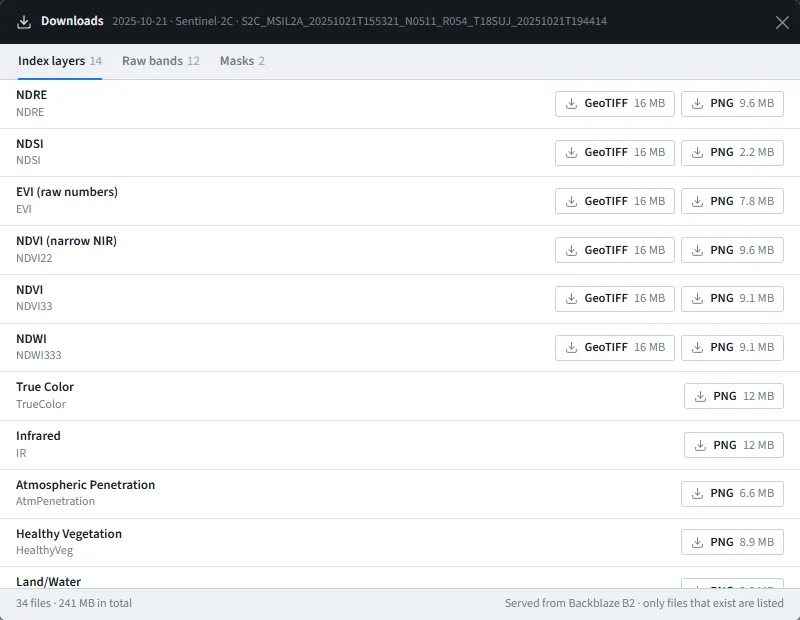
The downloads for a scene: its index layers, its raw bands and its masks.
The download button in the top bar lists every file the site keeps for the current scene, on three tabs:
-
Index layers: Each index as a GeoTIFF, with its real values, for a GIS, and as a PNG picture.
-
Raw bands: The satellite’s own bands, with their wavelength and resolution: every band file the scene has. A Landsat scene also offers Thermal infrared (TIRS 1), its B10, useful for burn scars; an older Landsat scene may also have B09. A radar scene has two, VV backscatter and VH backscatter, in linear units (Reading radar (Sentinel-1)).
-
Masks: The cloud and cloud-shadow masks.
Only files that exist are listed, each with its size. They open in a new tab.
Keyboard
Section titled “Keyboard”| Key | Does |
|---|---|
| ← → | the previous or next scene in the filter, even while the map has the focus |
| Space | play or pause |
| Ctrl+K | go to the search box |
| Esc | close the search results, stop measuring, end the comparison, or close a floating panel, in that order |
| Shift+click | make a scene A, to compare with |
The arrows and Space keep their usual meaning in a text box or a list, and the arrows move the compare divider when it has the focus.