
The satellite catalog
The catalog lists every scene the satellites took over your group, processed or not, with a preview of each. It is where you look for a clear day and choose the scenes to process.
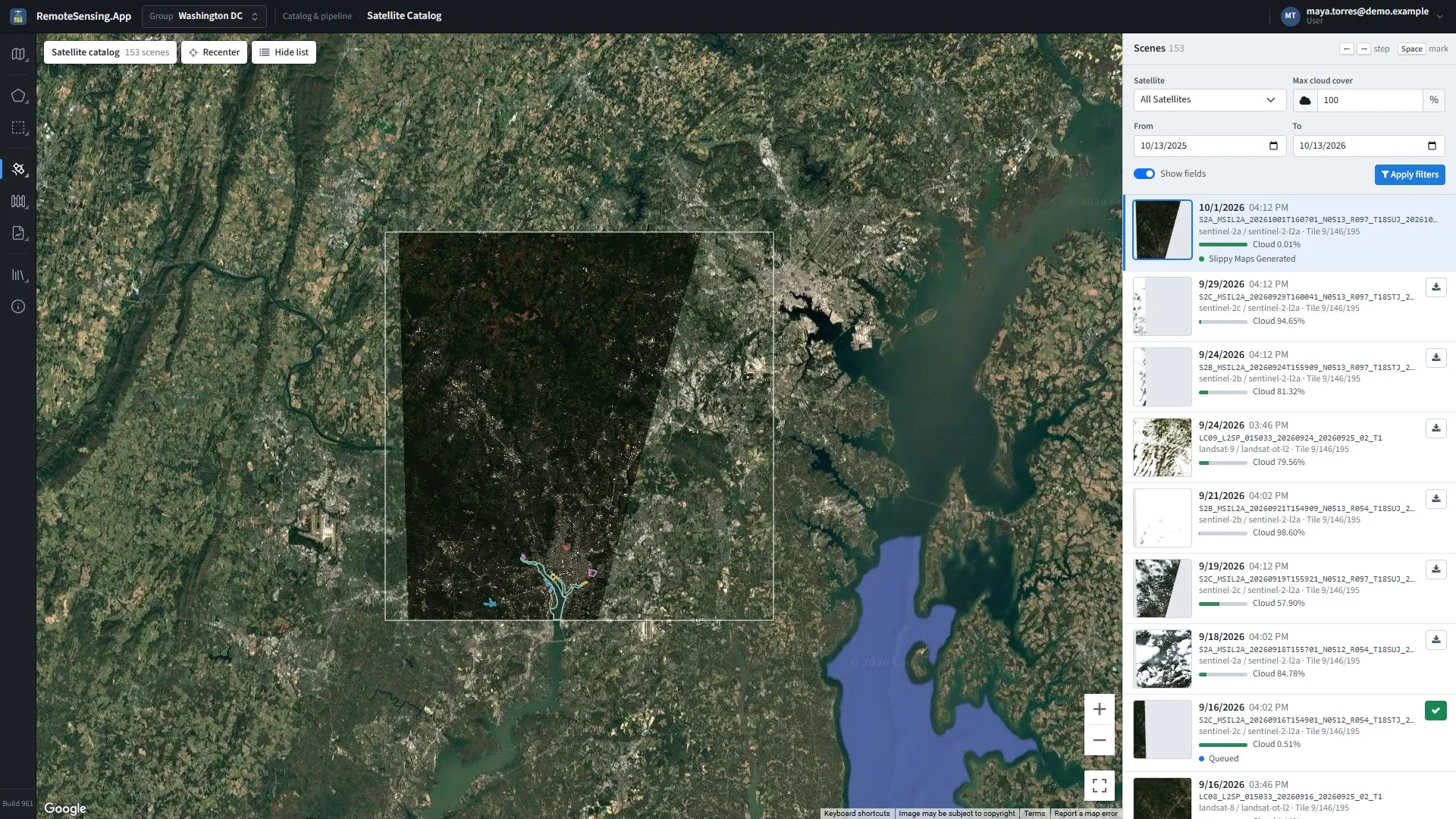
Satellite catalog: the scenes’ outlines on the map, the filters and the list on the right.
Open it from the rail: Catalog & pipeline, Satellite catalog. The page shows the group chosen in the top bar; pick another there to see its scenes.
Choosing what to see
Section titled “Choosing what to see”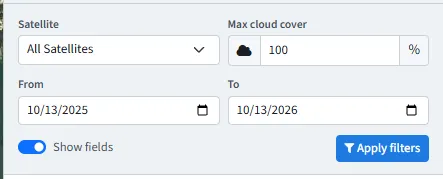
The catalog’s filters.
-
Satellite: All Satellites, or one of Sentinel-2A, Sentinel-2B, Sentinel-2C, Landsat-8, Landsat-9 and Sentinel-1 (radar).
-
Max cloud cover: From 0 to 100 %; 100 shows every scene. This is the satellite’s own figure for its whole tile, which can differ from the cloud over your fields.
-
From and To: The dates to list. Both days count in full: To includes the scenes taken late that day. Leave a box empty for no limit on that side. The page opens on the last 12 months.
-
Show fields: Draws your fields’ outlines on the map.
Press Apply filters to list the scenes again.
The catalog shows one scene a day for each satellite family: the one furthest along in processing, then the clearest. Radar (Sentinel-1) is listed in the groups that have radar, one row for each pass over them; its cloud reads n/a, since radar sees through cloud (Reading radar (Sentinel-1)), and Max cloud cover never hides it. Raw (level 1) scenes and scenes taken out of the catalog are never listed.
The list
Section titled “The list”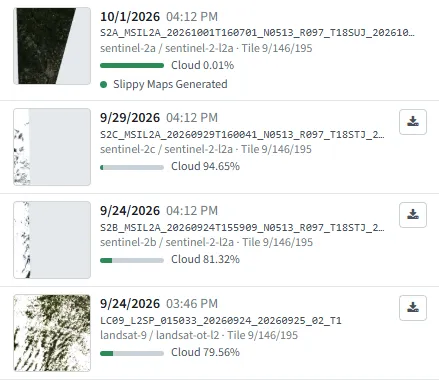
Scenes in the list: preview, date, scene, tile, cloud and status.
The newest scene is first. Each row shows:
-
a small preview, then the date and time of the pass;
-
the scene’s name, its satellite and collection, and the map tile it was previewed on;
-
its cloud cover, with a bar whose green part is the clear share;
-
its processing status, once it has one (Processing statuses);
-
the button to mark it for download, when it can be (Marking scenes for download).
Looking at a scene
Section titled “Looking at a scene”Click a row, or a scene’s outline on the map: the scene’s preview is laid over its outline, the map zooms to it, and the row is highlighted. Clicking an outline also brings its row into view.
At the map’s top left, Recenter fits the map to every scene in the list, and Hide list gives the map the whole width (Show list brings it back). Click a field on the map for its name and area.
With the keyboard
Section titled “With the keyboard”| Key | Does |
|---|---|
| → | the next newer scene; with none selected, the newest |
| ← | the next older scene |
| Space | marks the selected scene for download, or unmarks it |
| Enter | selects the row that has the focus |
The arrows work even while the map has the focus. In the filters, the keys keep their usual meaning.
Marking scenes for download
Section titled “Marking scenes for download”A scene is processed (downloaded, its indices worked out, its map tiles made) only once it is marked for download. Press the download button on its row, or Space: the button turns green with a tick and the status becomes Queued. Press it again to unmark it.
Only scenes that are not yet being processed can be marked or unmarked: those never processed, those already queued, and those whose processing failed (marking one again tries once more). A scene being processed, or already on the map, has no button. The site refuses, with a reason, to mark:
-
a monthly or quarterly composite: composites are built from other scenes, not downloaded;
-
a scene that is already processed and on the map, or already being processed: refresh the page to see its current state;
-
a radar (Sentinel-1) scene of a group that does not compute the radar layers: Sentinel-1 radar scenes are downloaded only for a group whose processing set computes a radar layer …. The download would cost processing units and make nothing; an administrator decides which groups have radar.
Marked scenes wait in the download queue until an administrator processes it (The download queue).
Processing statuses
Section titled “Processing statuses”| Status | Means |
|---|---|
| Queued | marked for download, waiting its turn |
| Downloaded, Raster Processed | on its way: its bands are in, its indices worked out; the satellite queue still lists it (The download queue) |
| Slippy Maps Generated, Completed | processed: its map tiles are made, and it is on the main map |
| anything with Failed | processing stopped; mark it again to retry, or ask an administrator |
A scene that was never marked shows no status.
The download queue
Section titled “The download queue”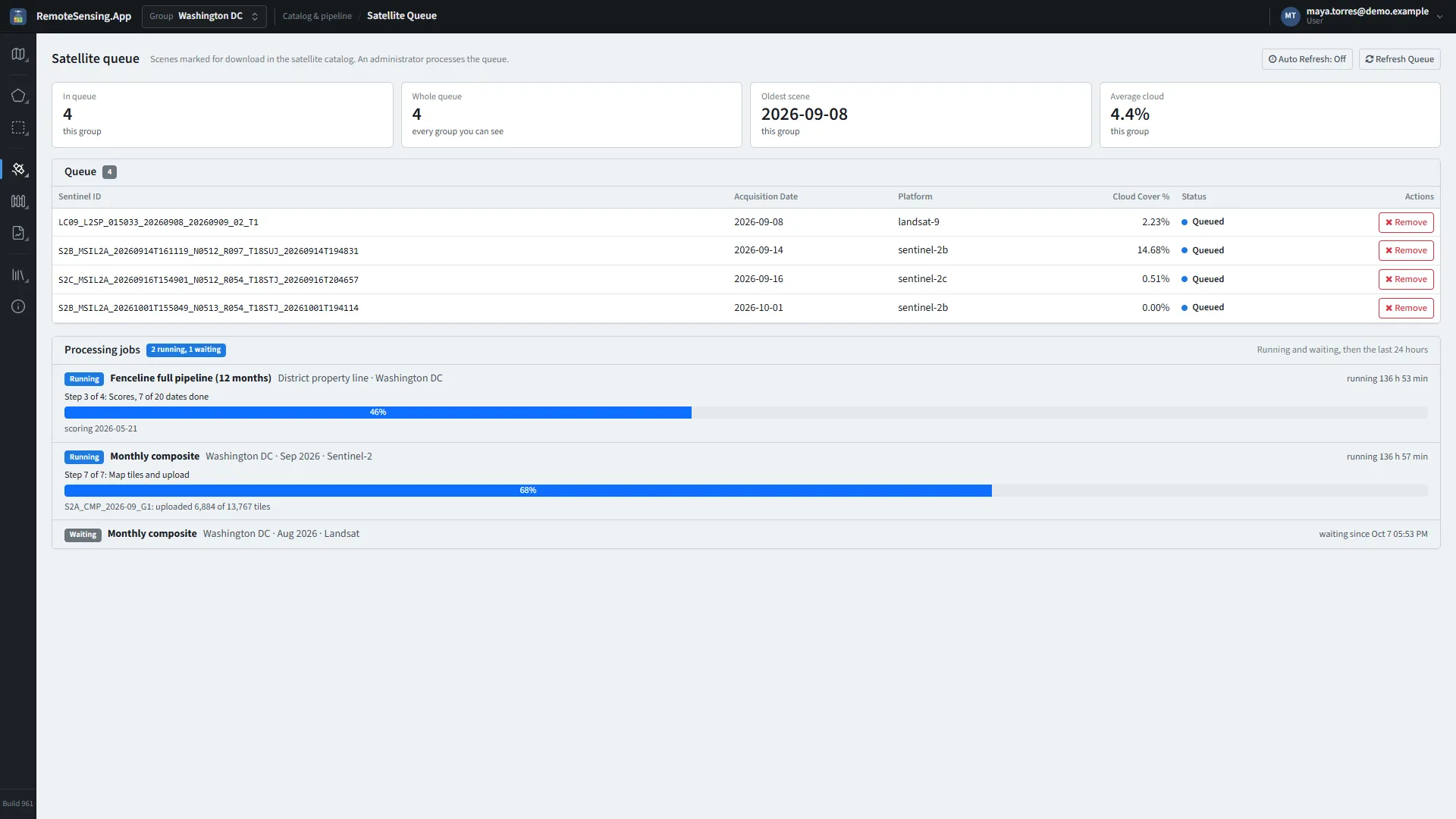
Satellite queue: the scenes marked for download, then the processing jobs.
Catalog & pipeline, Satellite queue lists the scenes marked for download in your group, and the scenes still on their way to the map after their download.
-
The tiles: In queue for this group, Whole queue across every group you can see, the Oldest scene waiting and the Average cloud. They count every scene in the table, the ones being processed too.
-
The table: Each scene’s name, date, satellite, cloud cover and status. A queued scene has Remove, which takes it out of the queue (it is unmarked, as in the catalog). A scene stays in the table after its download, until its map tiles are uploaded and it is on the main map: in place of Remove it shows Processing rasters while its indices are worked out, then Uploading map tiles. A scene being processed can no longer be removed.
-
Processing jobs: Below the queue: what the server is working on for your groups (downloads, monthly and quarterly composites, fenceline runs, previews, recalculations), the running jobs first, then those waiting, then those that ended in the last 24 hours. Each says what it works on, such as Monthly composite with its group, month and satellite, and its status; a running one also its step and a percent bar.
-
System messages: Administrators only. On the right, what the processing reported in the last 10 minutes, the newest first. Refresh reads them again.
-
Auto Refresh: Reads the queue again every 5 seconds while it is on, and the system messages too for an administrator.
-
Process Queue: Administrators only. Starts processing the whole queue, for every group.
Following a run
Section titled “Following a run”While the queue is being processed, a bar above the table follows the run, whoever started it. Open the page at any time to see how far it has got:
-
the step it is on, such as Step 3 of 6: Field statistics. The six steps are Downloading bands, Raster processing, Field statistics, Band statistics, Fenceline, and Map tiles and upload;
-
how many items of that step are done, such as 2 of 5 scenes done (boundaries, in the fenceline step);
-
on the bar, how far the whole run has got, in per cent. Making and uploading the map tiles takes most of the time, so the bar moves at an even pace, and it reads 100 % only once the run has finished;
-
the time since the run started, and how long ago the last report came, once nothing has been reported for two minutes. A large scene or boundary can be quiet for a while and still be fine.
Administrators also see the scene or boundary being worked on. A run that is waiting to start shows Queued. At the end the page says Processing complete!, or Processing ended: and how, such as Failed, when the run did not succeed.