
Fenceline alerts
Fenceline monitoring watches the land along a boundary: a strip just inside it, where clearing on your own property would show, and a strip outside it, where encroachment would. When the vegetation in a strip falls well below what is normal for it, the site raises an alert. This chapter is about reading and handling those alerts; setting a boundary up for monitoring is in Watching a boundary: the fenceline.
How an alert is raised
Section titled “How an alert is raised”
-
The boundary line is cut into segments, typically a few hundred metres long. Each segment has two zones: the strip inside the boundary and the strip outside it.
-
For every new scene, the site works out each zone’s average value in the monitored indices, such as NDVI, from its clear pixels.
-
It compares that value with the zone’s own baseline, its usual value in the scenes before, and expresses the difference as a z-score: how many times the zone’s usual spread the value has fallen. A z-score of −3 means a fall three times larger than the zone’s normal ups and downs.
-
An alert is raised when the z-score falls to the index’s threshold or lower (usually −2), with at least 10 clear pixels in the zone, and the fall shows in at least two looks rather than just one.
A zone is checked in each index only for the scenes after its newest alert in that index. While that alert is open, a further fall updates it: its last-detected date, z-score and severity. Once it has been acknowledged, resolved or marked false positive, the scenes it covered do not raise it again; a fall in a later scene raises a new alert. A scene that arrives late, dated before the zone’s newest alert, neither moves nor re-opens it.
Each alert names the index that fell, by the index and, when the index is computed on both satellites, the satellite: NDVI · Sentinel-2, EVI · Landsat, but just NDRE or CCCi (Landsat proxy) when only one satellite has it. The N indexes badge of a row counts each index and satellite once, so a row with NDVI alerts on both satellites shows two. An alert gets a severity from the size of the fall:
| Severity | Z-score |
|---|---|
| Critical | −4 or lower |
| High | −3 or lower, but above −4 |
| Medium | −2.5 or lower, but above −3 |
| Low | at or below the index’s threshold (usually −2), but above −2.5 |
The alerts page
Section titled “The alerts page”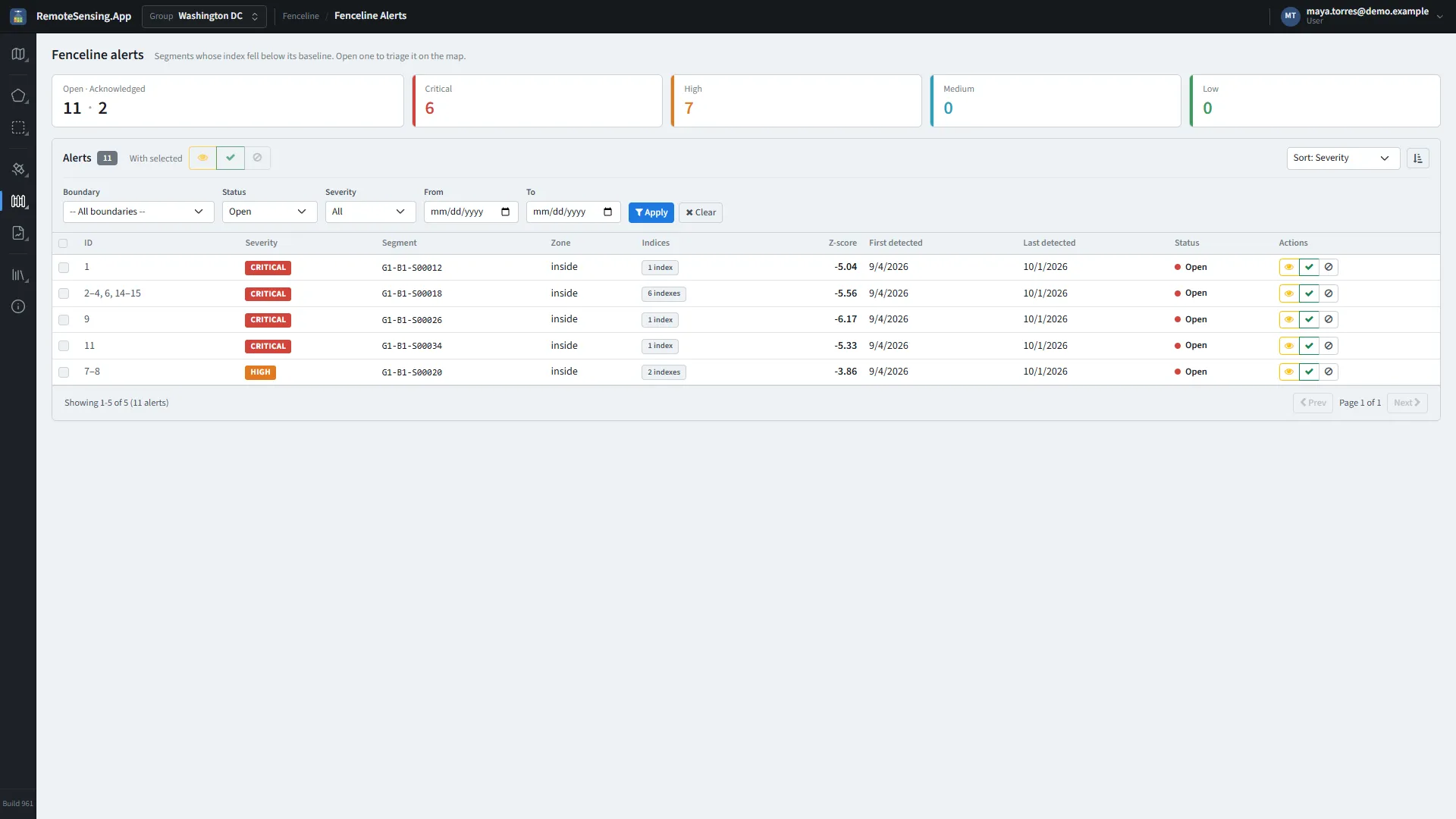
Fenceline, Alerts: the counts, the filters and the alerts, one row per segment and zone.
Open it from the rail: Fenceline, Alerts. It shows the alerts of the group chosen in the top bar.
The counts
Section titled “The counts”
The counts. A severity tile filters the table.
The first tile counts the group’s open and acknowledged alerts. The four severity tiles count the open and acknowledged alerts of each severity; click one to show only that severity in the table.
Filters and sorting
Section titled “Filters and sorting”-
Boundary: One boundary, or – All boundaries –.
-
Status: Open at first; also Acknowledged, Resolved, False positive or All.
-
Severity: One severity, or All.
-
From and To: Alerts first detected on or after From, and last detected on or before To.
Press Apply to filter, and Clear to go back to every open alert. The list above the table sorts by Sort: Severity, Sort: First detected, Sort: Last detected or Sort: Status; the button beside it turns the order round.
The table
Section titled “The table”Each row is one zone of one segment, with every alert it has: one per index that fell. The row shows, under ID, the numbers of its alerts, then the worst severity, the segment and zone, the Indices that fell, the lowest z-score, when the fall was first and last seen, and the status. Rows come 25 to a page; the footer says which rows are shown, out of how many, and how many alerts they hold.
Click a row to triage it (Triage on the map).
A link to one alert
Section titled “A link to one alert”Every alert has its own address: the page’s address with ?alertId= and the alert’s number, such as /FencelineAlerts?alertId=1728. Opening it chooses the alert’s group and boundary, sets the filters so that its row is listed (its status, and its first and last detection as From and To), and opens it on the map. While an alert is open, the address bar shows its address: copy it to send the alert to a colleague. A number that is not an alert, or an alert of a group you have not been given, says so and shows the list.
Acting on alerts
Section titled “Acting on alerts”An alert is Open when it is raised, and you move it on as you look into it:
| Action | Use it when |
|---|---|
| Acknowledge | you have seen the alert and are looking into it. Only an open alert can be acknowledged. |
| Resolve | the change was real and has been dealt with. From open or acknowledged. |
| False positive | nothing really happened: cloud, haze, a harvest you expected. From open or acknowledged. |
| Reopen | a resolved, false positive or acknowledged alert needs another look. |
Anyone who can see the group can act on its alerts, and the site records who did what, and when.
-
On a row: The buttons at the end of a row act on the row’s alerts that can take the action. A button shows only when at least one can; hover over it to see how many (Acknowledge 1 of 3, for example).
-
On several rows: Tick the rows, then use the buttons by With selected: acknowledge, resolve or mark them false positive, up to 100 alerts at a time. Each button acts on the ticked alerts that can take it, and stays greyed out until one can. Alerts resolved this way get the note Bulk resolved.
-
In the triage view: The buttons in the side panel act on the open row’s alerts in the same way. Resolve first opens a box for an optional note, Resolution notes: type what you found, then press Confirm resolve. The note is saved with the alerts and shown in their History.
Triage on the map
Section titled “Triage on the map”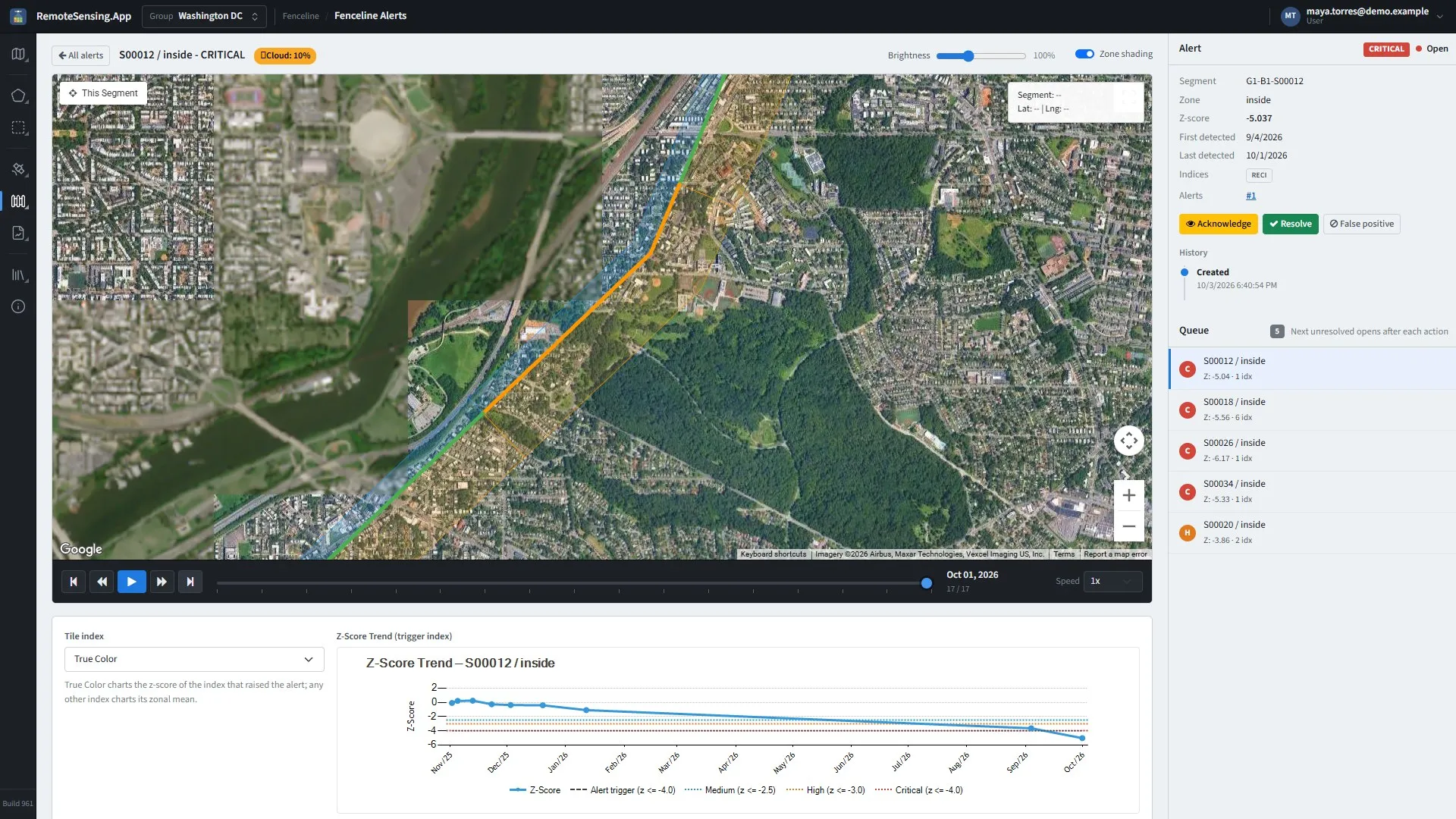
The triage view: the segment on the map, the scenes to step through, the trend below, and the alert and its queue on the right.
Clicking a row opens its alert on a map. All alerts at the top left goes back to the table.
-
The map: The boundary’s segments and zones over the scene, the alert’s segment marked. This Segment, at the map’s top left, hides every other segment; All Segments shows them again. Brightness lightens a dark scene (50 to 200 %), and Zone shading turns the zones’ colour on and off.
-
The cloud badge: Beside the title, how much of this segment was under cloud on the day the alert was scored: green under 10 %, amber up to 30 %, red above. Treat an alert with a red badge with care: cloud can look like lost vegetation.
-
The player: Steps through the scenes around the alert, so you can see the change happen. Home and End jump to the first and last scene, ← and → step, Space plays and pauses; Speed runs from 0.5x to 3x.
-
Tile index and chart: Tile index chooses what the scenes are shown in. The viewer opens on True Color, the scene’s own (a Landsat scene’s true colour counts as well, so a Landsat alert opens on its picture and not on its first layer). With True Color, the chart below plots the z-score of the index that raised the alert; with another index, it plots that index’s average over the zone. On the z-score chart, a dashed line marks this alert’s own threshold (Alert trigger in the legend), and dotted lines mark where Medium, High and Critical begin, once the scores reach them.
-
The side panel: The alert’s segment, zone, z-score, dates and indices; the row’s alerts, each by its number and a link to its own address (A link to one alert); its action buttons; and its History: when it was raised, who acknowledged, resolved or dismissed it and when, and the note typed when it was resolved.
-
The queue: Under the alert, the other alerts that match the table’s filters, up to 2,000; narrow the filters if there are more. After each action, the next unresolved one opens by itself, so you can work down the list without going back to the table.