
Indices
An index turns a scene’s colour bands into one number per pixel that says something about the ground: how green the vegetation is, how much water it holds, whether it has burned. The site’s library holds nearly 300 of them. This chapter shows the ones you will use most, how to read the radar layers, how to save the ones you use as a map view, and where to look an index up.
The indices you will use most
Section titled “The indices you will use most”| Index | What it shows |
|---|---|
| NDVI | How green and dense the vegetation is, from bare ground (about 0) to a full canopy (towards 1). The everyday index for crop and forest health. Water and cloud are negative or near 0. |
| EVI | Like NDVI, but less affected by haze and by the soil showing through, and it keeps telling dense canopies apart where NDVI levels off. |
| SAVI, MSAVI, OSAVI | Variants of NDVI corrected for bright soil between the plants: useful for young crops and sparse cover. |
| NDRE | Uses the red-edge band, which reacts to the leaves’ chlorophyll: it shows stress in a full canopy earlier than NDVI. Sentinel-2 only. |
| GNDVI | Uses the green band: sensitive to chlorophyll and nitrogen. |
| NDMI | How much water the vegetation holds. Falls in drought before the canopy browns. |
| MSI | Moisture stress: rises as the vegetation dries, the opposite way to NDMI. |
| NBR | Burn ratio: drops sharply where vegetation has burned. Compare a scene before and after a fire. |
| True Color | Not an index but a picture: the scene as your eye would see it. Start here to check for cloud, haze and anything unusual. |
Two layers are not indices but masks: Cloud Mask, where the scene’s cloud is, and Cloud Shadow Mask, where its shadow falls (CLD and SHAD on Sentinel-2, CloudMask_Landsat_CDIST and ShadowMask_Landsat on Landsat). The site uses both to leave clouded and shadowed pixels out of every field’s figures, on both satellites. A Landsat scene downloaded before October 2026 has no shadow mask: its figures leave out the cloud only.
Reading radar (Sentinel-1)
Section titled “Reading radar (Sentinel-1)”Some groups also have radar scenes, from the Sentinel-1 satellites. They are there to show clearing and fire scars, also in the months when cloud hides the ground from Sentinel-2 and Landsat. A group has radar only when an administrator has added the radar layers to what it computes (Administrator Guide); the first is a pilot group in Indonesia.
What radar sees
Section titled “What radar sees”Sentinel-2 and Landsat take pictures of the sunlight the ground reflects, so a cloud hides what is under it. Sentinel-1 sends its own microwave pulses and measures how much of them comes back, its backscatter. Microwaves pass through cloud, haze and smoke, and work at night, so every pass sees the ground.
Backscatter depends on the shape and the wetness of what the pulse meets, not on its colour. A forest canopy scatters a lot back, bare or cleared land less, and calm water almost nothing. Each radar layer is measured in decibels (dB): the more negative the number, the less came back.
Sentinel-1 sends its pulses in two ways at once. VV measures the pulse that comes back as it was sent; VH measures the share that the canopy’s branches and leaves turned around. VH is the one that falls most when trees are removed.
The radar layers
Section titled “The radar layers”| Layer | What it shows |
|---|---|
| VH backscatter | The main signal for clearing and fire. Forest is bright, cleared or burnt land darker. Clearing a block typically drops its VH by about 1 to 3 dB, more on dense forest. Drawn from −28 to −8 dB. |
| VV backscatter | Reacts more to the ground and its wetness: wet soil and flooding show here. Drawn from −20 to 0 dB. |
| VH/VV ratio | VH against VV, in dB: the vegetation’s structure, less disturbed by rain on the soil than either band alone. Drawn from −16 to −4 dB. |
| Radar vegetation index | From 0 to 1: higher under a full canopy, lower where it has been removed. It has no unit. |
| Radar composite | Radar’s picture, under Colour composites: VV in red, VH in green and the VV/VH ratio in blue. Forest looks green, cleared land dark or magenta, water black. It is what a radar scene opens on, as an optical scene opens on True Color. |
A single radar scene is grainy, a pattern called speckle. The site smooths it a little before working out the layers, but a pixel’s value still jumps from pass to pass. A field’s mean is much steadier than any one pixel, so read changes from the fields panel and the chart rather than from the colours alone.
Radar on the map
Section titled “Radar on the map”-
Radar scenes have their own lane on the timeline, Sentinel-1, and their own source: click the lane’s name, or choose Sentinel-1 under Satellite on the Scenes tab, to see only radar (One satellite at a time). In the Scenes list a radar row names its satellite and its orbit, such as Sentinel-1A · orbit 32 descending.
-
The map opens on the newest optical scene (Sentinel-2 or Landsat), even when a radar scene is newer: radar is one click away in its lane. With Sentinel-1 chosen as the source, or a link that names a radar scene, it opens on radar.
-
The layers your map view lists follow you to a radar scene when it has them. An optical layer, such as NDVI or True Color, does not exist on a radar scene: the map shows the Radar composite instead. Add the radar layers to the map view you use, which anyone in the group can do (Map views (index collections)); All layers always lists them.
-
Compare picks an earlier radar scene of the same orbit for A, so the two were seen from the same angle (Comparing two scenes).
-
On the chart, radar is its own line, drawn with squares and listed as Sentinel-1 (radar) in the key; it is never joined to a Sentinel-2 or Landsat line.
Cloud, fields and dates
Section titled “Cloud, fields and dates”-
Cloud is n/a: Radar has no cloud figure: the top bar, the scenes list, the hover card, the fields panel, the catalog and Image processing read n/a. The Max cloud filter never hides a radar scene, and the Cloud Mask and Cloud Shadow Mask switches are greyed: radar has no masks.
-
Every field is usable: A radar scene counts every field as seen: under Usable fields, its hover card on the timeline counts all of them, and no field’s value is left out for cloud.
-
Dates are in UTC: A pass’s date and time are in UTC, as for every scene. The pilot group’s passes come at about 21:50 UTC, which is early the next morning in Indonesia, so the timeline shows each one on the day before its local date.
Reading a field’s radar values
Section titled “Reading a field’s radar values”-
A dB mean is a log mean. A field’s mean of a dB layer is the average of its pixels’ dB values, which comes out a little lower than the dB of the field’s average backscatter. It does not matter for change: compare a field’s values from pass to pass, or one field with its neighbour, and the difference holds.
-
Exactly 0 counts as no data, as on every layer. Outside the radar’s strip of ground, and where a pass saw nothing, the layer is 0 and drawn transparent. A pixel whose real value is exactly 0 (a VH/VV ratio of 0 dB, say) is left out too: such pixels are rare and move a field’s mean very little.
-
Field edges take some backscatter from the land next to them, since a radar pixel is coarser than it looks (about 20 m, drawn as 10 m).
-
Downloads. The download button’s Raw bands tab offers the scene’s two radar bands, VV backscatter and VH backscatter, as GeoTIFFs of linear backscatter (not dB); Index layers has the radar layers in dB. A radar scene has no masks to download.
Map views (index collections)
Section titled “Map views (index collections)”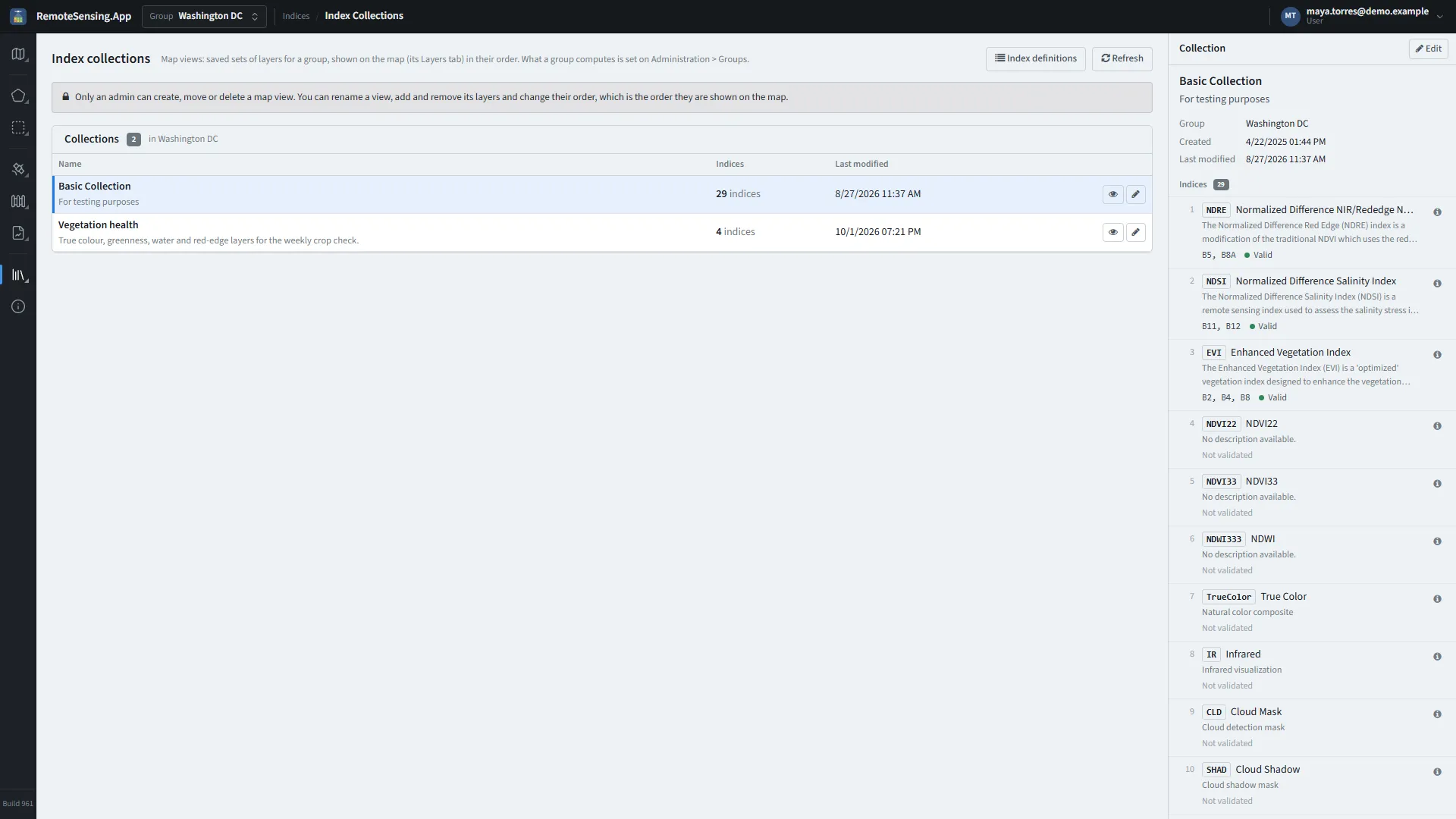
Indices, Index collections: the group’s map views, and the layers of the one selected.
A map view is a saved list of layers for a group, shown on the map in the view’s order: the five you look at every week, say, out of the dozens the scenes have. On the main map, choosing a view at the top of the Layers tab shows only its layers (Choosing a layer). The rail and the page still call map views index collections.
A map view lists indices, not satellites’ versions of them, so one view serves every satellite. Add NDVI once, from either satellite, and the map shows NDVI on Sentinel-2 and on Landsat scenes, at that place in the view’s order. An index the scene’s satellite does not compute is simply not shown on that scene.
A map view does not decide what is computed. The indices a group’s scenes are computed with are its processing set, which an administrator sets on the Groups page under the cog (Administrator Guide). To see it, open Catalog & pipeline, Image processing and press the eye button on a scene: the window lists every index the group computes, with its satellite, and says which satellite’s rows that scene computes; the other satellite’s rows are greyed.
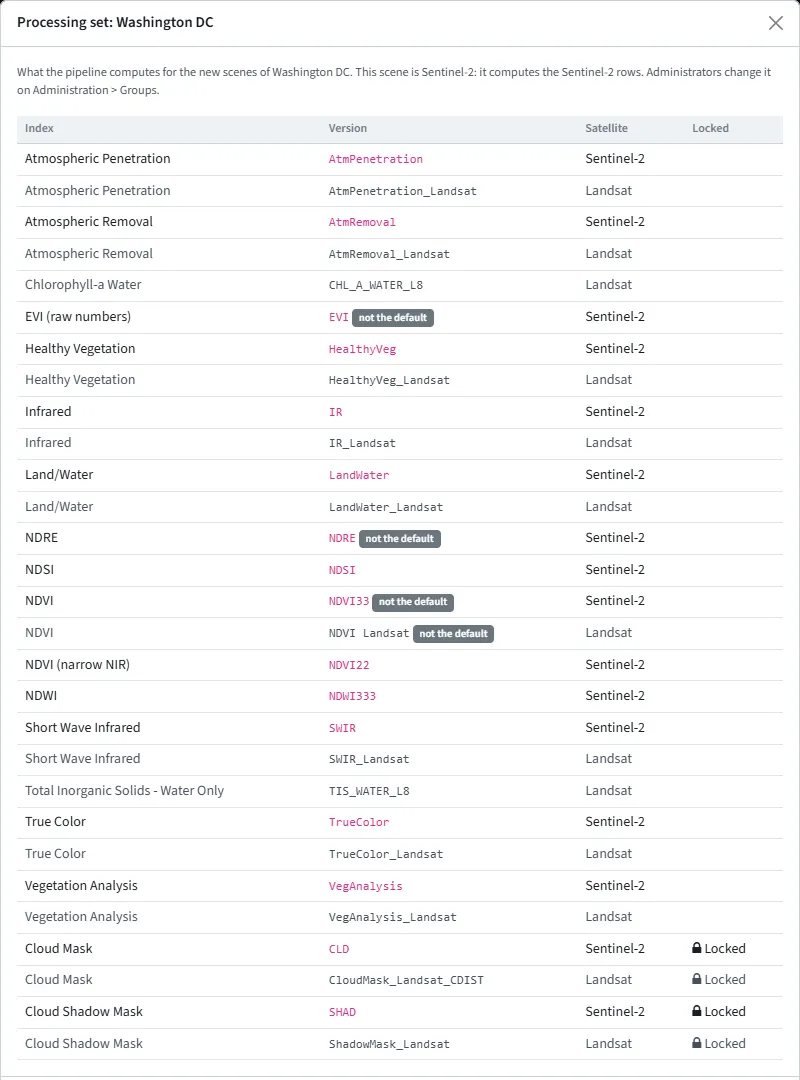
Image processing, the eye button on a scene: what the group’s scenes are computed with, the other satellite’s rows greyed. The padlocks mark the cloud and shadow masks, which every group keeps.
Anyone who works in a group can change its map views: rename a view, add and remove its layers, and drag them into the order the map should show them. Only an administrator can create a new map view, move one to another group or delete one.
Open the views from the rail: Indices, Index collections, or from Manage collections… on the main map. The page lists the views of the group chosen in the top bar, with how many layers each holds and when it was last changed. Click one to see its layers on the right, each with its name, what it measures and the bands it needs; the ⓘ button beside a layer shows its formula and range.
Making or changing a map view
Section titled “Making or changing a map view”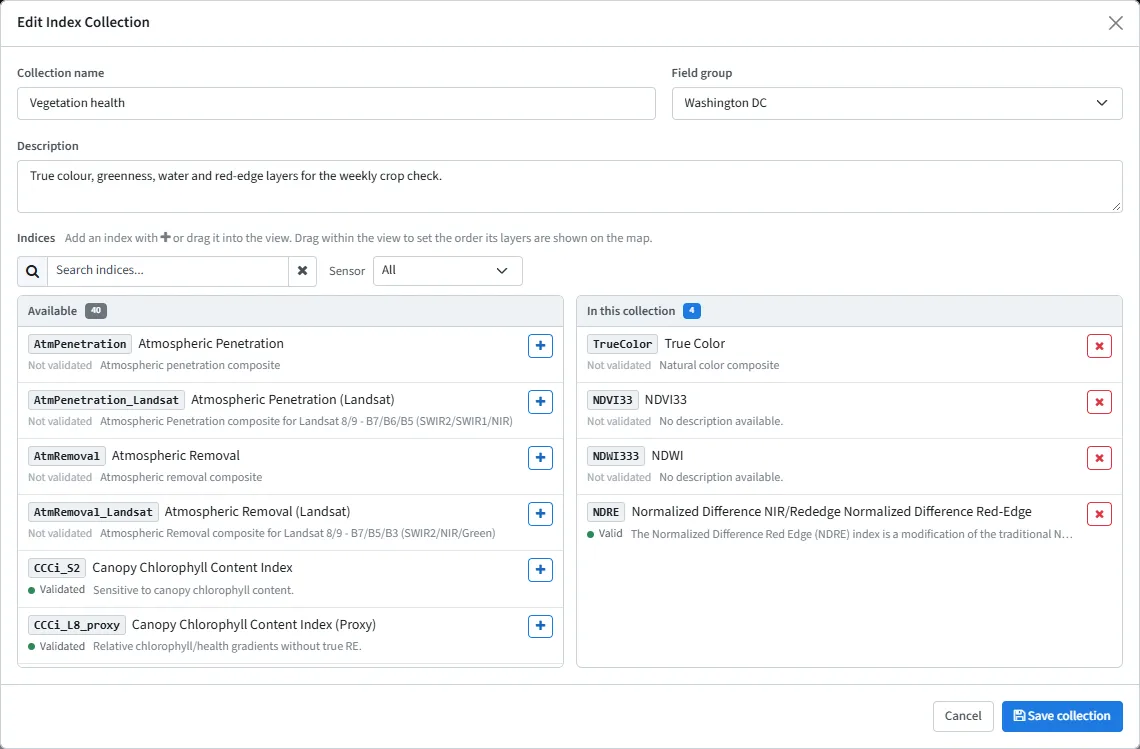
Changing a map view: the indices to choose from on the left, the view’s layers on the right.
Everyone has the pencil on a view’s row. Only an administrator also has New collection and the bin, and can change a view’s Field group.
-
Press New collection (administrators), or the pencil on a view’s row.
-
Give it a Collection name, and a Description if you like. Field group is the group it belongs to.
-
Find indices under Available: type in Search indices… (a name, an abbreviation such as NDVI, or a word of the description), or choose a satellite under Sensor. The list holds the indices switched to Available on the Index definitions page: on the live site, the indices in use, since the formula library’s unused rows (The formula library) are switched off. It does not offer the cloud and shadow masks, which are not map layers: the Cloud Mask and Cloud Shadow Mask switches under the Layers tab’s Reference show them (Choosing a layer).
-
Press + beside an index, or drag it to In this collection. The × beside an index there takes it out again.
-
Drag the indices up or down within In this collection: this is the order the map shows them in.
-
Press Save collection.
An index you add goes to the end of the list. The view keeps the order you see when you save it, and the page numbers its layers in that order. An older view may still hold the cloud and shadow masks, which collections had to keep before processing sets: they do nothing there, the map never lists them as layers, and you can take them out.
To delete a view (administrators only), press the bin on its row and confirm. The indices themselves are not affected: only the saved list goes.
The formula library
Section titled “The formula library”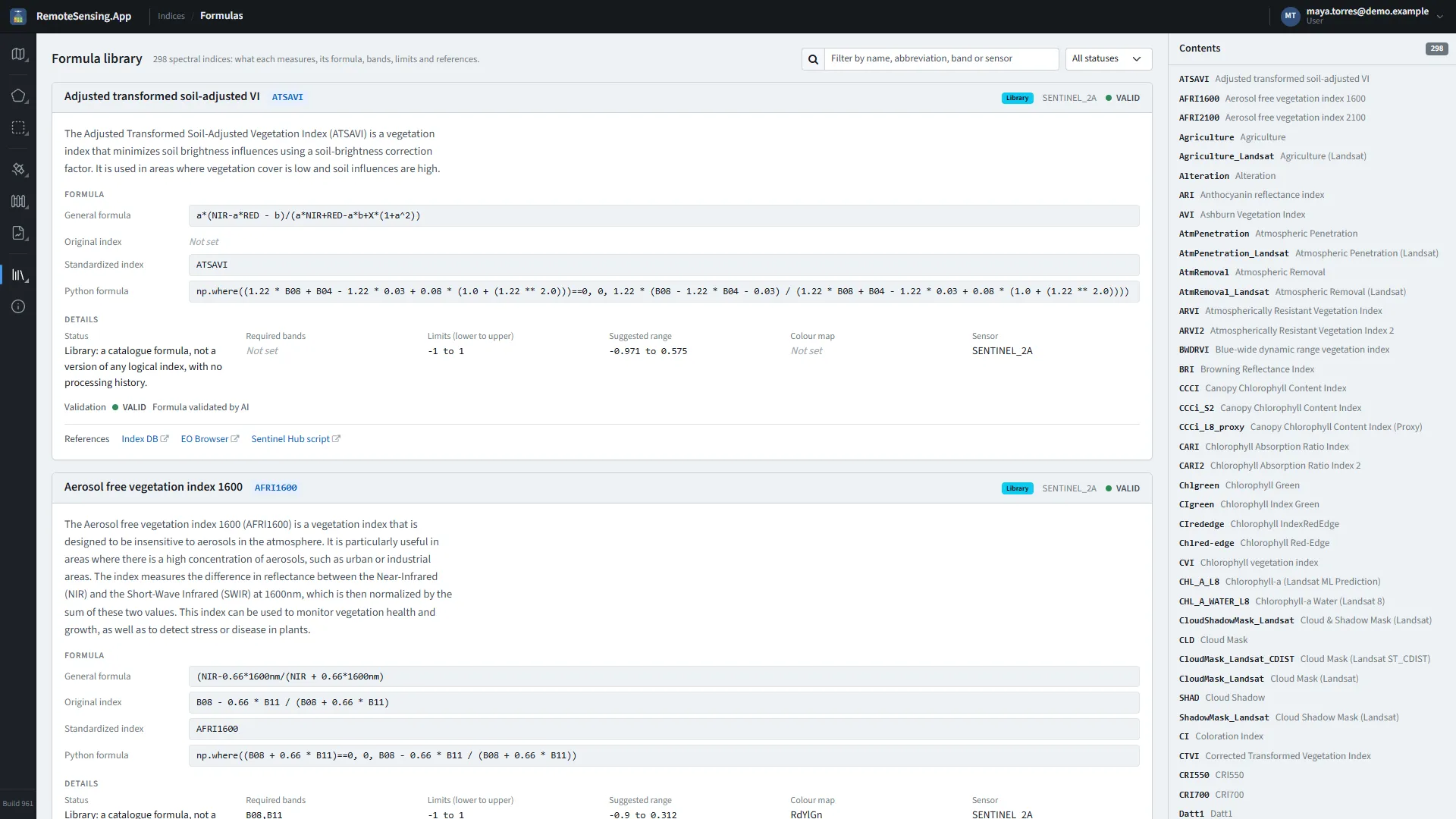
Indices, Formulas: every index the site knows, with its status, formula, bands and references.
Indices, Formulas describes every index the site knows: what it measures, its formula, the bands it needs, the range of its values, the colours it is drawn in and its status, with links to where it was published. The page is headed Formula library, and its cards use the full width of the page. An index’s Sentinel-2 and Landsat versions share one formula, written in common band names such as nir and red, unless a version keeps a formula of its own. The list on the right jumps to an index; the box at the top finds indices by name, abbreviation, band (such as B08) or satellite, and All statuses beside it shows one status only.
The badge on each index, repeated as Status in its details, says whether the site computes it:
-
Active: Computed: groups can process it, and it can be on your map.
-
Retired: No longer computed; the layers and statistics already made stay.
-
Library: A catalogue formula, kept for reference: no group computes it.
Use it when you meet an unfamiliar layer on the main map, or to choose the right index for a question before you build a map view.
The change log
Section titled “The change log”The Change log button at the foot of the rail’s sections lists what changed in each release of the site, the newest first, grouped by month. Each entry has its date, version and build number: compare the build with the one at the foot of the rail to see whether a change has reached you.