
Fields and boundaries
Fields are the areas the site measures: every scene’s statistics are worked out for each of them. Boundaries are outlines of another kind, such as property lines and concessions, drawn on the map in their own colours and, when you want, watched along their edge for change (Fenceline alerts).
Anyone who can see a group can add, change and delete its fields and boundaries.
The field list
Section titled “The field list”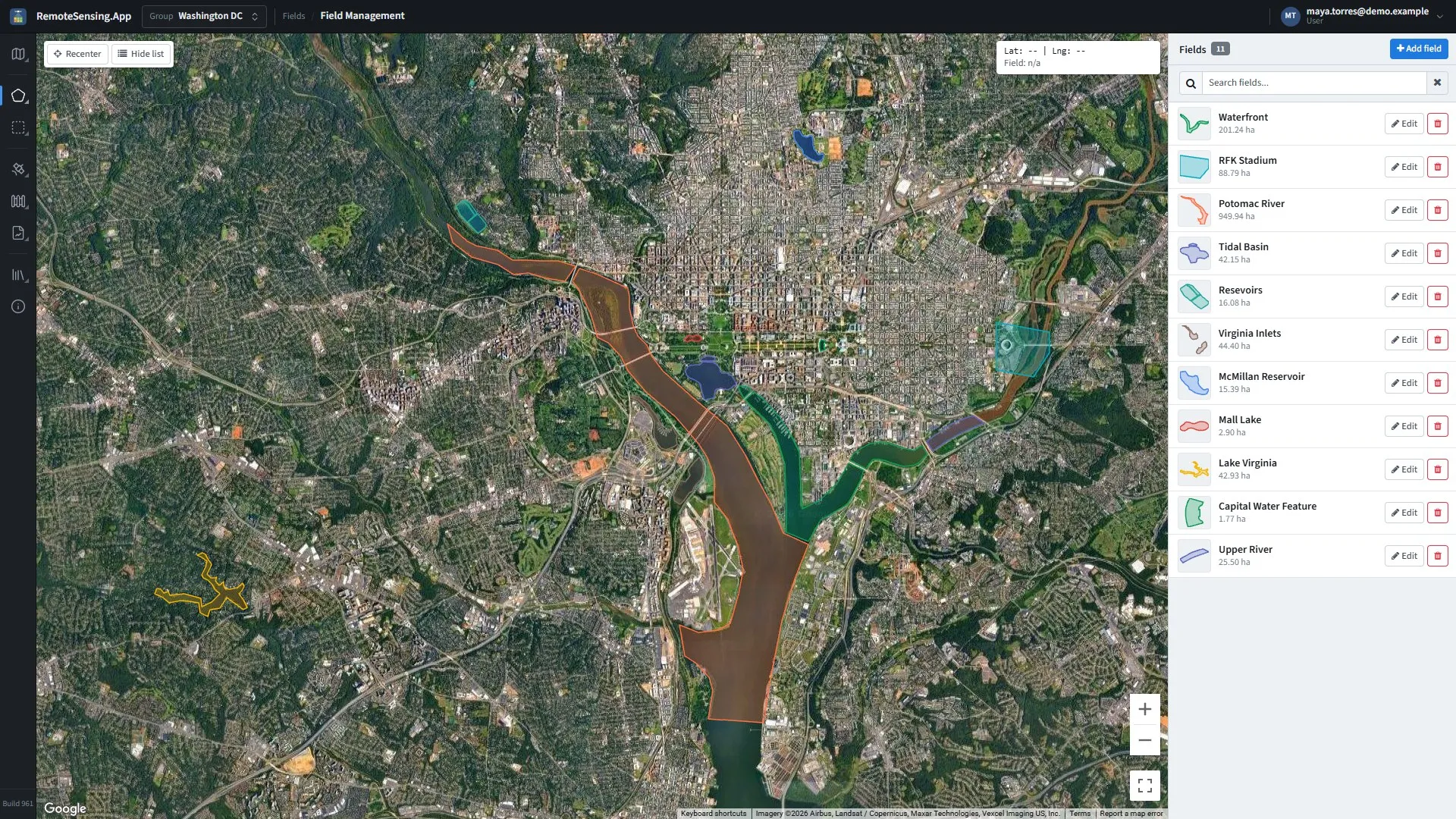
Fields, Field list: the group’s fields on the map and in the list.
Open it from the rail: Fields, Field list. It shows the fields of the group chosen in the top bar, each in its own colour.
-
The list shows each field’s shape, name, area in hectares and its other names. The search box above it finds fields by any of their names as you type.
-
Click a field, in the list or on the map, to zoom to it. It turns red, and a box shows its name, group and area with an Edit button.
-
Hover over a field on the map for its name; the strip at the bottom of the map gives the position under the pointer and the field it is in.
-
Recenter fits the map to every field, and Hide list gives the map the whole width.
Drawing on the map
Section titled “Drawing on the map”The field and boundary pages share one way of drawing outlines.
-
A polygon: Click the map to place each corner. To finish, click the first corner again, or double-click the last one. You need at least three corners. A dashed line follows the pointer from the last corner while you draw.
-
A rectangle: Click one corner, then the opposite corner. (Fields only.)
-
Cancelling: Esc throws away the shape you are drawing.
-
Changing a shape: Once a shape is finished, drag a corner to move it, drag the small handle in the middle of a side to add a corner there, or drag the whole shape to move it.
Adding a field
Section titled “Adding a field”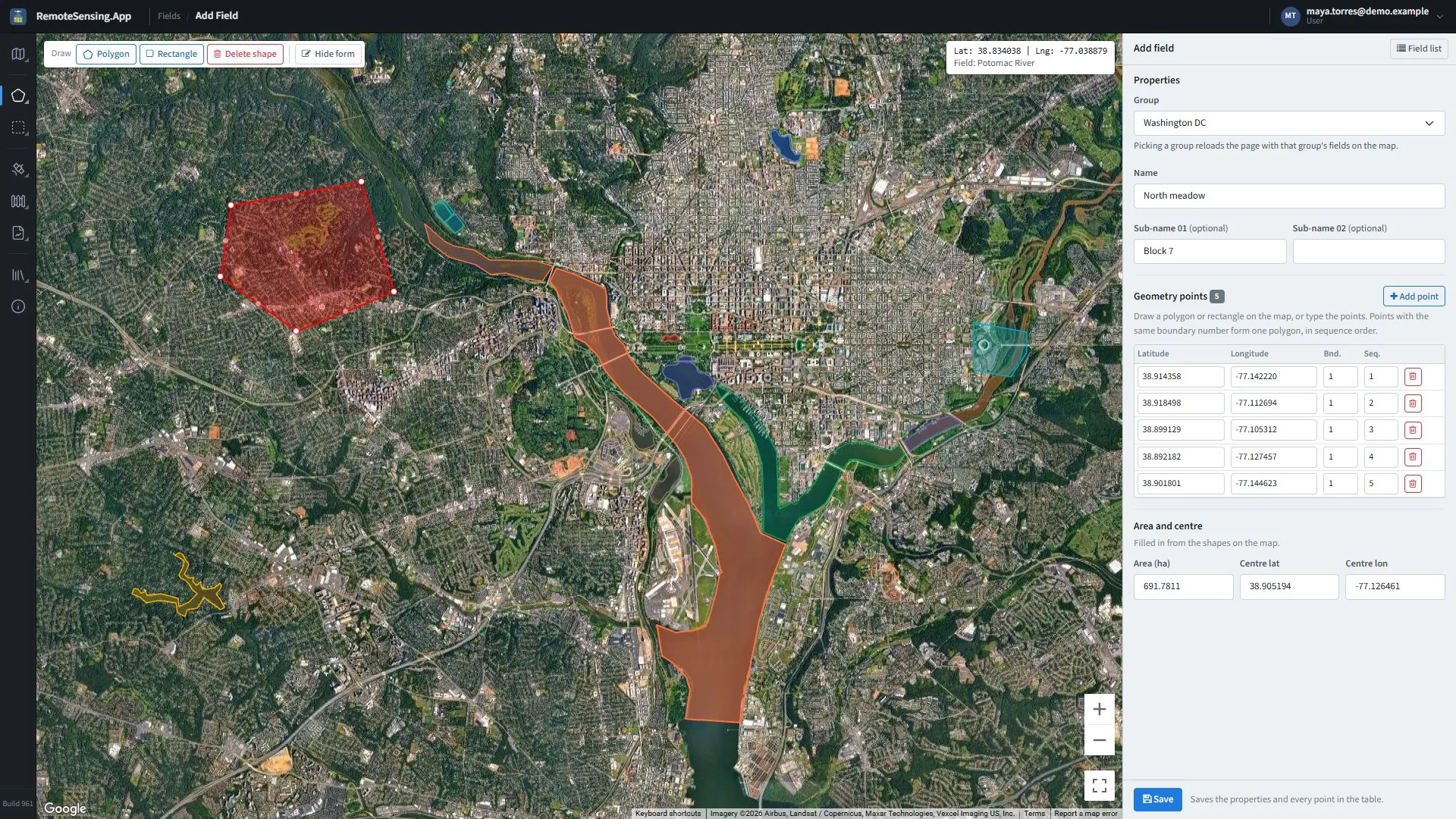
Add field: the properties and points on the left, the group’s other fields on the map.
-
On the field list, press Add field, or choose Fields, Add field in the rail.
-
Choose the group first. The page reloads with that group’s fields on the map, so anything typed before is lost.
-
Type the Name, and the two optional names, Sub-name 01 and Sub-name 02 (a block number, a crop or an owner, for example). There is no number to type: when you save, the site gives the field the next free field number itself, so two fields never share one.
-
Press Polygon or Rectangle above the map and draw the field (Drawing on the map). Its corners fill the Geometry points table, and Area (ha), Centre lat and Centre lon are worked out for you.
-
Press Save. The site returns to the field list, with the new field on it.
A field can have more than one part, such as a block split by a road: draw each part as its own shape. The parts are numbered in the table’s Bnd. column, and each part’s corners in order in Seq..
To remove a shape, click it (it turns red) and press Delete shape.
A new field appears on the main map at once. Its values come with the scenes processed after it was added; for the scenes processed before, ask an administrator to work its statistics out.
Changing or deleting a field
Section titled “Changing or deleting a field”Press Edit on the field list, or in the box that opens when you click a field. The edit page is the add page with the field’s outline loaded on the map: drag its corners, draw more parts, or change its names and group. Save changes replaces the field’s outline with what is on the map.
To delete a field, press the bin beside it on the field list and confirm. Its outline goes at once, and it cannot be brought back.
The boundary list
Section titled “The boundary list”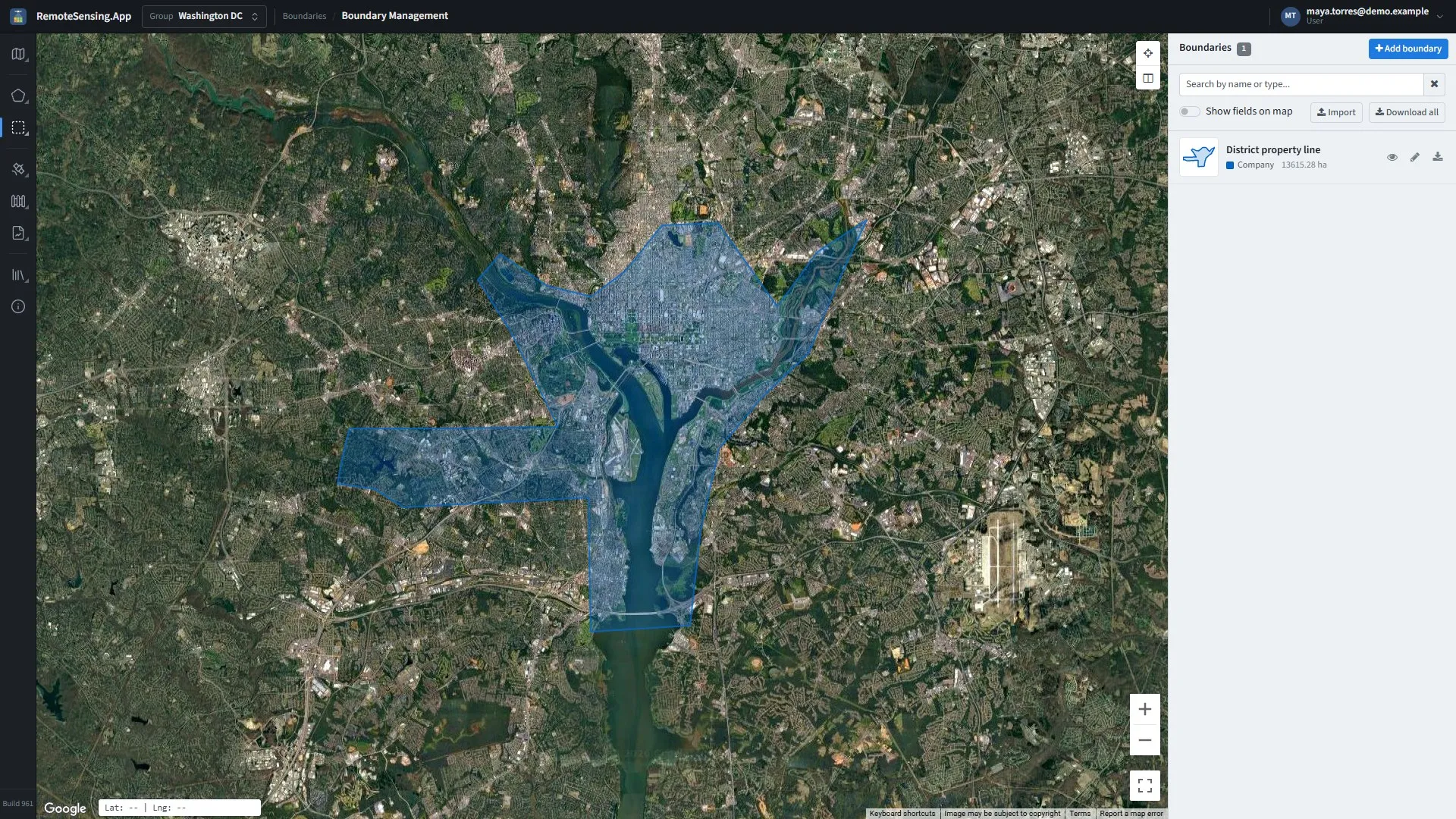
Boundaries, Boundary list: each boundary in its type’s colour.
Open it from the rail: Boundaries, Boundary list. It lists the group’s boundaries by name, each with its shape, its type and its area, and draws them on the map in their type’s colour.
-
The search box finds boundaries by name or by type.
-
Show fields on map draws the group’s fields as well, in yellow.
-
Click a boundary’s name, or the boundary on the map, to zoom to it. The box that opens has View and Edit.
-
The buttons on each row open its details, its edit page, or download it as a shapefile.
Boundary types
Section titled “Boundary types”Every boundary has a type, such as Company, HGU or Plasma. The type sets its colours on the main map, the order it is drawn in, and the starting distances for its fenceline. Types are set up by an administrator; ask one if you need a new type.
Adding a boundary
Section titled “Adding a boundary”-
On the boundary list, press Add boundary.
-
Type its Name, and choose its Boundary type and Group. Name 1 to Name 4 and Notes are optional.
-
Draw the boundary on the map. Drawing starts by itself when the page opens: click each corner, then click the first corner again or double-click to finish. Clear drawing starts again.
-
Press Save boundary.
A boundary drawn on the site is a single polygon. A boundary in several parts comes from a shapefile (Shapefiles).
A boundary’s details
Section titled “A boundary’s details”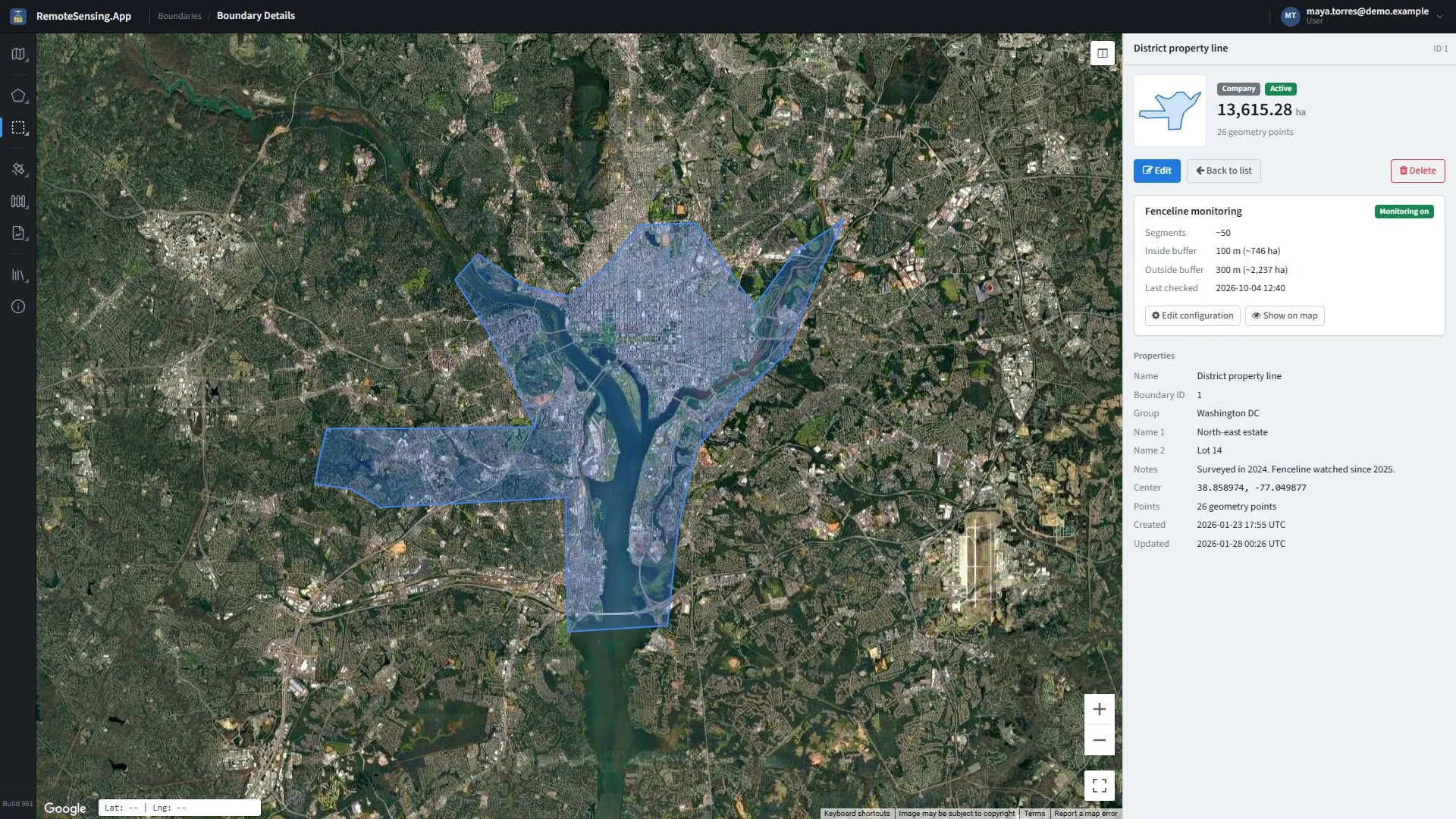
A boundary’s details: its outline, its properties and its fenceline.
The details page shows the boundary on the map, its type and whether it is active, its area and number of points, and its properties: names, group, notes, centre, and when it was created and last changed. From here, Edit opens the edit page and Delete deletes the boundary.
The edit page works like the add page, with the outline loaded. A boundary in several parts, such as one imported from a shapefile, shows every part, and saving keeps them all: drag a corner to reshape a part, or drag a part to move it. Redraw replaces the whole outline with one shape you draw; if the boundary has several parts, it asks first.
Watching a boundary: the fenceline
Section titled “Watching a boundary: the fenceline”The Fenceline monitoring card on the details page shows whether the boundary is watched, how many segments it has, how wide its zones are and when it was last checked. Show on map draws the segments and zones.
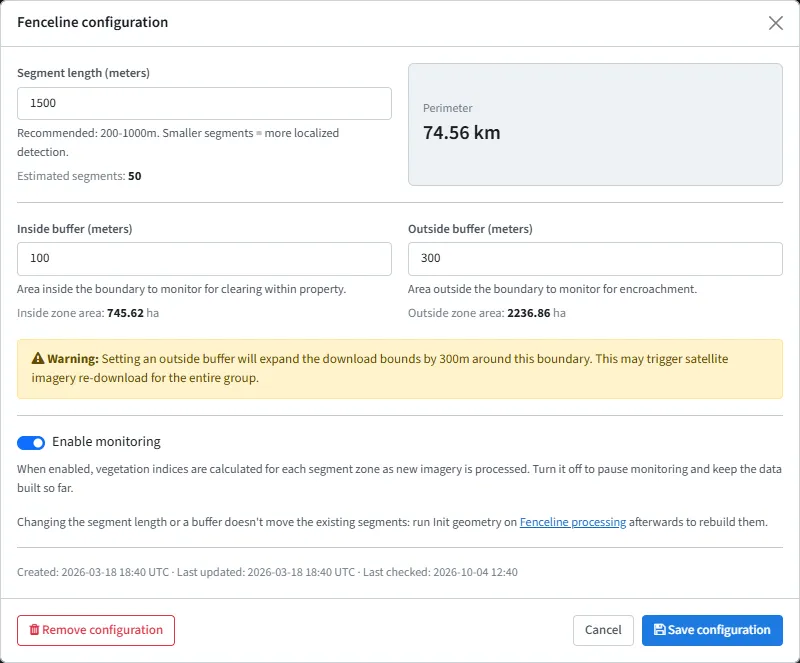
The fenceline configuration.
To set one up, or change it, press Configure fenceline (or Edit configuration):
-
Segment length: How long each piece of the line is, in metres. Shorter segments place a change more precisely; 200 to 1000 m suits most boundaries. The window shows how many segments that makes.
-
Inside buffer: How far inside the boundary to watch, in metres, for clearing on the property.
-
Outside buffer: How far outside to watch, for encroachment from beyond it.
-
Enable monitoring: Turns the watching on. A new configuration starts with it off. Turn it off to pause the watching and keep what has been built so far.
The starting values come from the boundary’s type. Press Save configuration.
Changing the segment length or a buffer does not move segments that are already built. The window says so, and once you save it reminds you that the segments must be rebuilt with Init geometry. A rebuild archives the boundary’s alerts, and the next full run works out its statistics again.
To stop watching a boundary for good, press Remove configuration in the window. It deletes the boundary’s segments, zones, statistics and scores, and copies its alerts to the archive, so they leave the Alerts page. The site first says how many of each will go, and refuses while a fenceline command is running for the boundary. To pause instead, and keep everything, turn off Enable monitoring.
If the boundary was changed after its fenceline was set up, the card warns that the segments may be out of date and points to Init geometry. If the segments still match the boundary, that changes nothing; if not, it rebuilds them, archives the boundary’s alerts and works out its statistics again from scratch. Ask an administrator to run it.
Shapefiles
Section titled “Shapefiles”Boundaries can be brought in from, and taken out to, a GIS as shapefiles.
Downloading
Section titled “Downloading”Download all on the boundary list gives every boundary of the group in one shapefile; the download button on a row, just that boundary. The file is a .zip named after the group or the boundary. Each boundary keeps its ID, name, other names, type, group, area, centre, notes and dates as attributes, so you can change it in a GIS and import it again.
Importing
Section titled “Importing”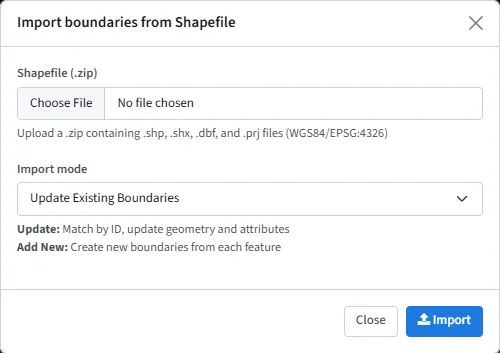
Importing boundaries from a shapefile.
-
Put the shapefile’s
.shp,.shx,.dbfand.prjfiles in one.zip, at most 50 MB. The coordinates must be longitude and latitude in WGS 84 (EPSG:4326); re-export them from your GIS if not. -
On the boundary list, press Import and choose the file.
-
Choose the Import mode:
-
Update Existing Boundaries matches each shape to a boundary by its
ID, or else itsBDRY_ID, and replaces its outline and attributes. Only the boundaries of the group you are importing into are matched: a shape whose ID belongs to another group’s boundary is skipped, with a warning, and so is one that matches nothing. -
Add New Boundaries adds every shape as a new boundary.
-
-
Press Import. The window then says how many boundaries were added, updated and skipped, with any errors and warnings.
The site reads these attributes: ID, BDRY_ID, NAME, BDRY_TYPE, GROUP_NAME, NAME_01 to NAME_05 and NOTES. BDRY_TYPE must be the name of an existing type, or empty for the first one; a shape with an unknown type is skipped. A shape without a name is called Imported_1, Imported_2 and so on.