
Getting started
Signing in
Section titled “Signing in”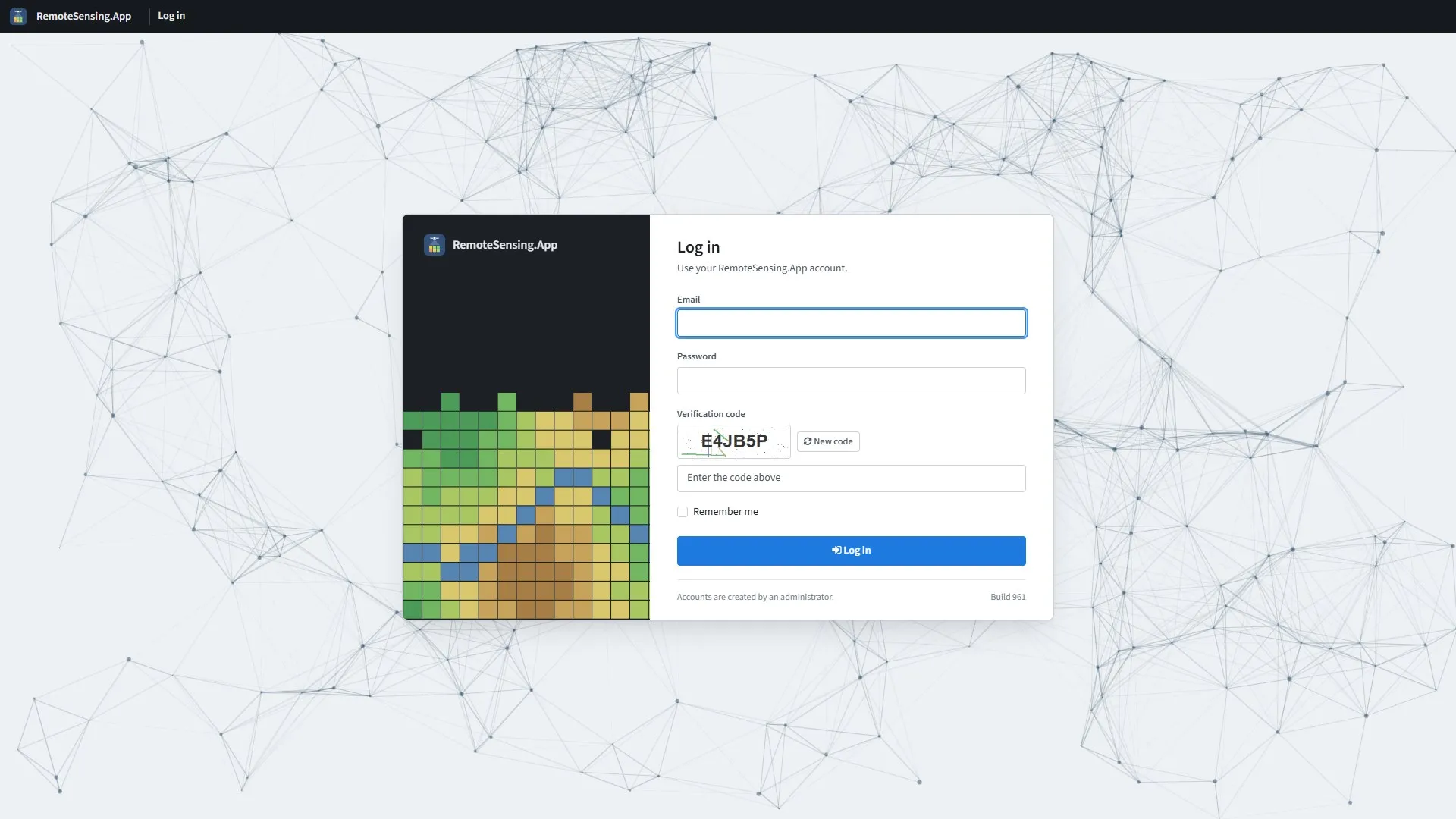
The sign-in page.
Accounts are made by an administrator: there is no way to sign up on the site. Your administrator gives you the site’s address, your e-mail address and a first password.
-
Type your Email and Password.
-
Type the six letters and digits in the picture into Verification code. Capitals or small letters both work. If you cannot read them, New code shows another picture.
-
To stay signed in after you close the browser, tick Remember me. Leave it clear on a computer other people use.
-
Press Log in. The main map opens on your group, or the page you were trying to open.
-
Invalid CAPTCHA code: The code was mistyped. The page shows a new picture: type its code, and your password again.
-
Invalid login attempt.: The e-mail address or the password is wrong.
Without Remember me, you stay signed in until you sign out or close the browser. With it, closing the browser does not sign you out. Either way, two weeks without a visit to the site signs you out.
The screen
Section titled “The screen”Every page has the same frame: a bar along the top and a rail of buttons down the left.

The left of the top bar on the field list: the logo, the group picker and where you are. Your menu, at the right, is in Your account.
-
The logo: Takes you to the main map from anywhere.
-
Group: The group picker, on the pages that show one group (Choosing a group).
-
Where you are: The section and the page, such as Fields / Field Management. The main map puts the scene’s date and satellite here instead.
-
The cog: Administrators only: the site’s administration pages.
-
Your menu: Your initials, name and role. It holds Account settings, Dark Mode and Sign out.
The rail
Section titled “The rail”Each button on the rail is a section of the site. A small triangle in a button’s corner means the section has more than one page: rest the pointer on it, or move to it with Tab, and its pages open beside it; click the button itself for the section’s first page. A button without a triangle opens its one page, and shows its name when you rest the pointer on it. The section you are in is marked with a blue bar.
On a touch screen, the first tap on a button with a triangle opens its pages, and a second tap opens the first page.
The build number at the foot of the rail tells an administrator which release you are using.
| Section | Pages | Chapter |
|---|---|---|
| Map | Main map, Live satellite map | The main map, The live satellite map |
| Fields | Field list, Add field | Fields and boundaries |
| Boundaries | Boundary list, Add boundary | Fields and boundaries |
| Catalog & pipeline | Satellite catalog, Satellite queue, Image processing, Download bounds | The satellite catalog |
| Fenceline | Alerts, Processing | Fenceline alerts |
| Reports | Change over time, Monthly field report | Reports |
| Indices | Index collections, Formulas | Indices |
| Change log | what changed in each release | Indices |
Image processing, Download bounds and the fenceline’s Processing are mostly administrators’ pages, and are described in the Administrator Guide.
Choosing a group
Section titled “Choosing a group”You see only the groups your administrator has given you. On the pages that show one group, the Group list in the top bar switches between them, and the page reloads with the group you chose. In Chrome and Edge, the open list marks the group you are on with a tick.
A group that an administrator has switched off is not in the list, and pages no longer open on it, even if it was the last one you chose. A link that names it still opens it.
The site remembers the last group you chose, in this browser, and opens every page on it: the main map, the field list and the catalog all follow your choice. A link that names a group, such as a shared link from the main map, opens that group instead.
Your account
Section titled “Your account”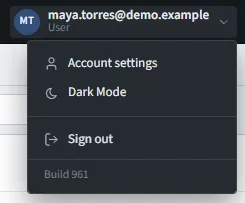
Your menu.
-
Account settings: Opens Manage account, where you change your password (Changing your password).
-
Dark Mode: Switches every page to light text on a dark background, which is easier on the eyes in a dim room; Light Mode switches back. The choice is kept in this browser. Google’s map controls stay light either way.
-
Sign out: Signs you out and returns you to the sign-in page. Do this on a shared computer.
Changing your password
Section titled “Changing your password”-
Open your menu at the right of the top bar and choose Account settings.
-
Press Change your password.
-
Type your Current password, then the new one in New password and again in Confirm new password, and press Change password.
A password needs at least six characters, with at least one capital letter, one small letter, one digit and one other sign, such as ! or #. The hint under New password gives the same rules. Changing it signs you out on your other computers within half an hour, even where you ticked Remember me.
Pages you may meet
Section titled “Pages you may meet”-
Access denied: You opened a group you have not been given, or an administration page. Return to your default group takes you back. If you need the group, ask an administrator.
-
No groups assigned: Your account has no groups yet, or all of yours are switched off: ask an administrator to give you one.
-
No imagery available: Your group has no processed scenes yet. If you have other groups, choose one under Switch group. Scenes appear once they are processed (The satellite catalog).
-
Bad Request: A plain page from the server: the address names a group or a scene in a form the site does not accept, such as a group number written
0x14instead of20. Each page checks the group and the scene in its address before it shows anything, so a changed address can never open another group’s data. Open the page from the site’s own menus or links. -
Account disabled: An administrator has disabled your account, so you cannot sign in. Back to log in returns to the sign-in page; ask an administrator if you need access again. After too many failed sign-ins the page says Account locked instead: try again later.
-
Page Not Found: The address is wrong, or the page has moved. An old link says this too, and so does a report’s CSV link when the report has nothing to show, such as the change report of a group with no property outline. Return to Home opens the main map.
-
Internal Server Error: Something went wrong on the site. The page shows no technical details: the site keeps them for its administrators. Try again; if it happens again, tell an administrator what you were doing and when.
Screens and browsers
Section titled “Screens and browsers”The site works in any current browser: Chrome, Edge, Firefox or Safari. It is made for a computer screen; on a narrower one, labels give way to icons, and the main map’s side panels fold away behind buttons of their own.